






Management calendar
Annotated screen overview
The screenshot below has the browser frame removed and visible appointment blocks cleaned away, so the screen elements can be explained without exposing client or booking data. Tap or click the image to enlarge it.
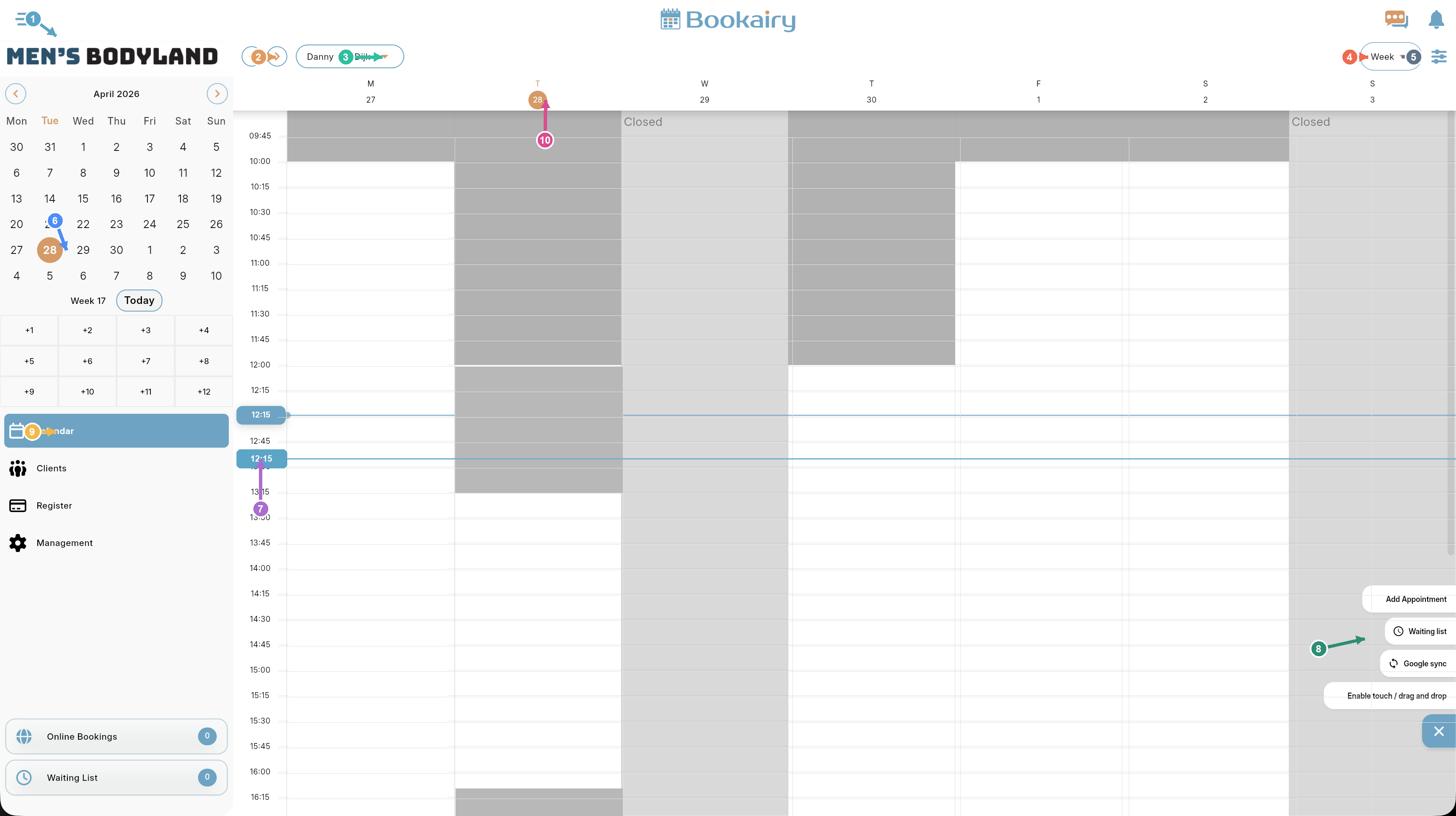
1Main menu
The menu button opens or collapses the main navigation. Use it when the team needs more calendar space or wants to reach another part of the management app.
2Previous and next period
The arrow buttons move the visible calendar backward or forward. In Week view they move by week; in Day view they move by day. This is the fastest way to check earlier or upcoming planning without using the mini calendar.
3Staff selector
The staff dropdown selects whose calendar is shown. It is used to focus on one staff member, switch between team members, or review availability before creating or moving an appointment.
4View mode
The view mode dropdown changes the calendar layout, such as Week view. The selected view controls how much time is visible and how the schedule is grouped on screen.
5Calendar settings
The sliders icon opens the Calendar Settings drawer. Those settings control the calendar display, including visible hours, slot size, indicators, header options and appointment block styling. The settings are saved per staff member and per platform.
6Mini calendar
The mini calendar gives a compact month overview. Select a date to jump directly to it, use the month arrows to browse, and use Today to return to the current date. The week number helps teams align planning by week.
7Current time indicator
The horizontal time line shows the current time across the calendar. It helps staff see which appointments are upcoming, which time blocks have already passed, and where new bookings should be placed.
8Quick actions
The floating action buttons provide fast access to common tasks: add an appointment, open the waiting list, trigger Google sync and enable touch or drag-and-drop behaviour. These actions keep booking work close to the calendar grid.
9Sidebar modules
The sidebar modules jump to major parts of Bookairy such as Calendar, Clients, Register, Management, Online Bookings and Waiting List. The counters show how many online bookings or waiting list items need attention.
10Week header and day columns
The week header shows each day in the selected period. The highlighted date marks the active day, grey zones show closed or unavailable time, and the white grid shows bookable working time in the selected time-slot division.
Working tip: start from the staff selector and view mode, then use the mini calendar or previous/next buttons to reach the right date. Use quick actions only after the correct staff member, day and time range are visible.