






First setup
Company setup walkthrough
Use these 26 management screens as the first setup route for a new company. Work from top to bottom, save each screen, and only publish the booking link after the calendar, services, staff, messages and payments have been tested.
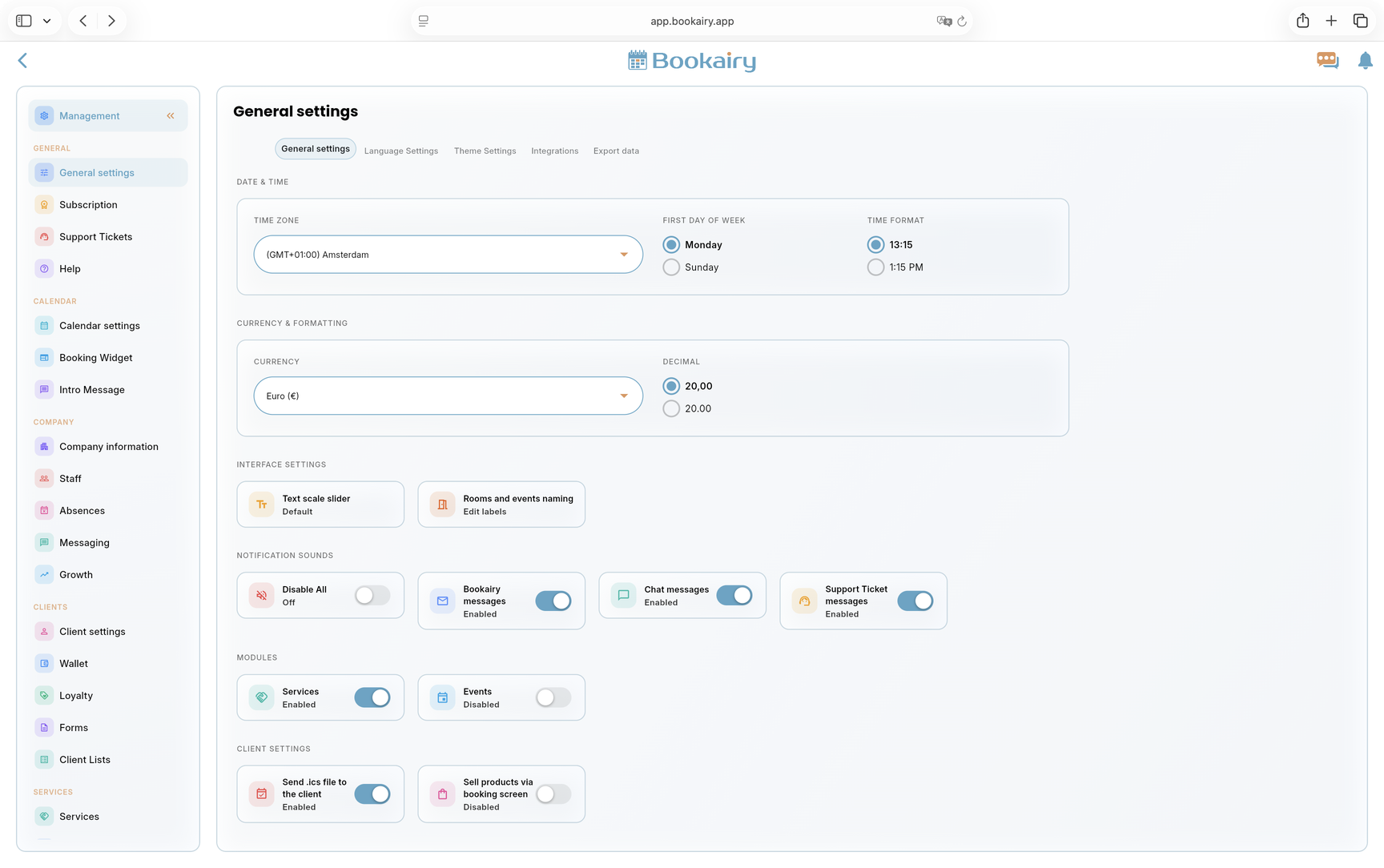
Set the system basics
Start in Management and open General settings. This screen defines how the whole company sees time, currency, interface labels, notifications and active modules.
- Set the correct time zone, first day of the week and time format before appointments are created.
- Choose the currency and decimal format that match the company invoices and POS payments.
- Review interface naming, notification sounds, active modules and client options such as calendar file attachments and product sales.
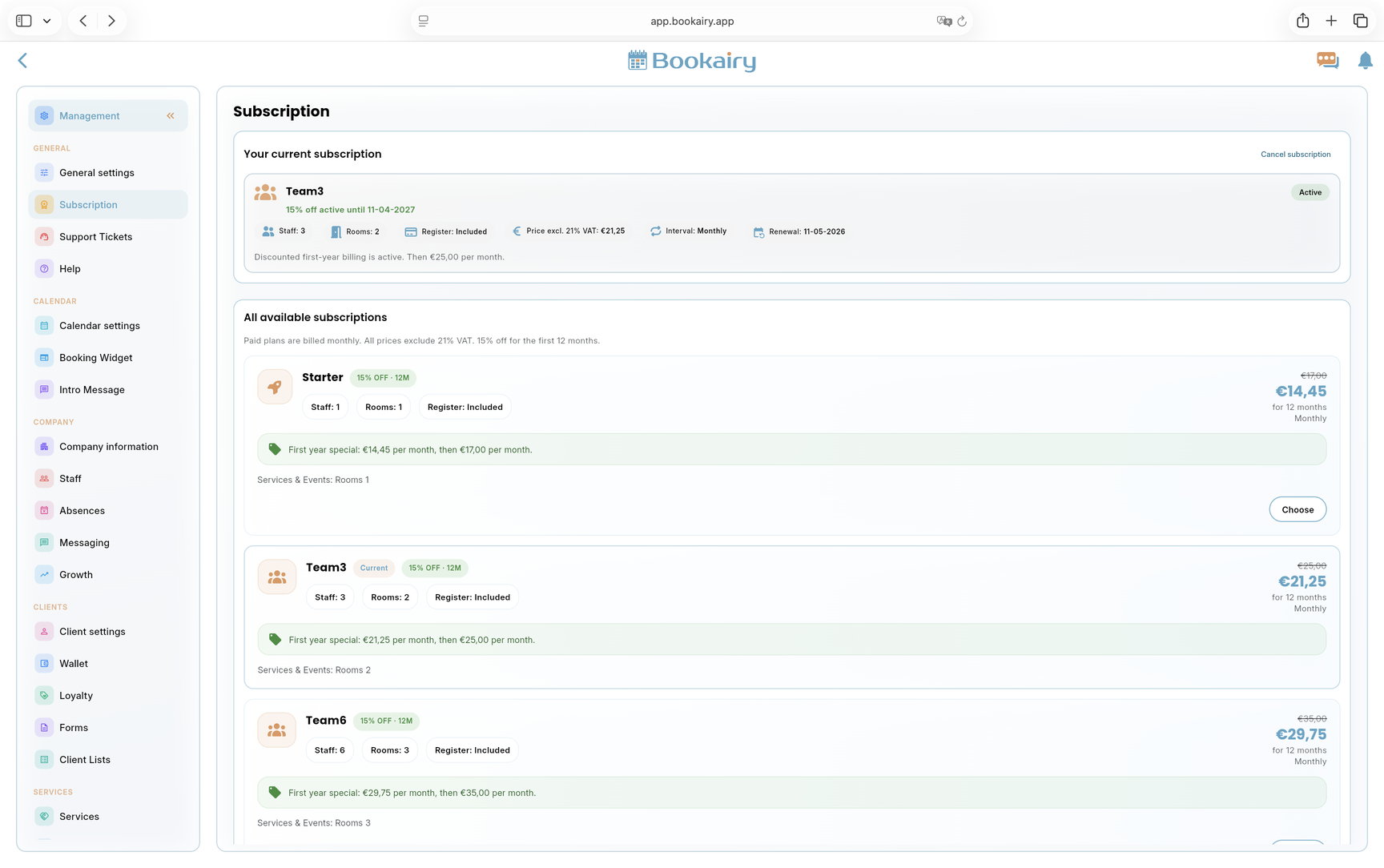
Confirm the subscription
Open Subscription and check whether the selected plan matches the company size. Do this before inviting staff, because the plan controls available staff seats, rooms, registers and monthly pricing.
- Check the active plan, renewal date, billing period, discount and price excluding VAT.
- Compare the staff and room limits with the actual business setup.
- Upgrade or downgrade before the live launch if the current plan does not fit the team.
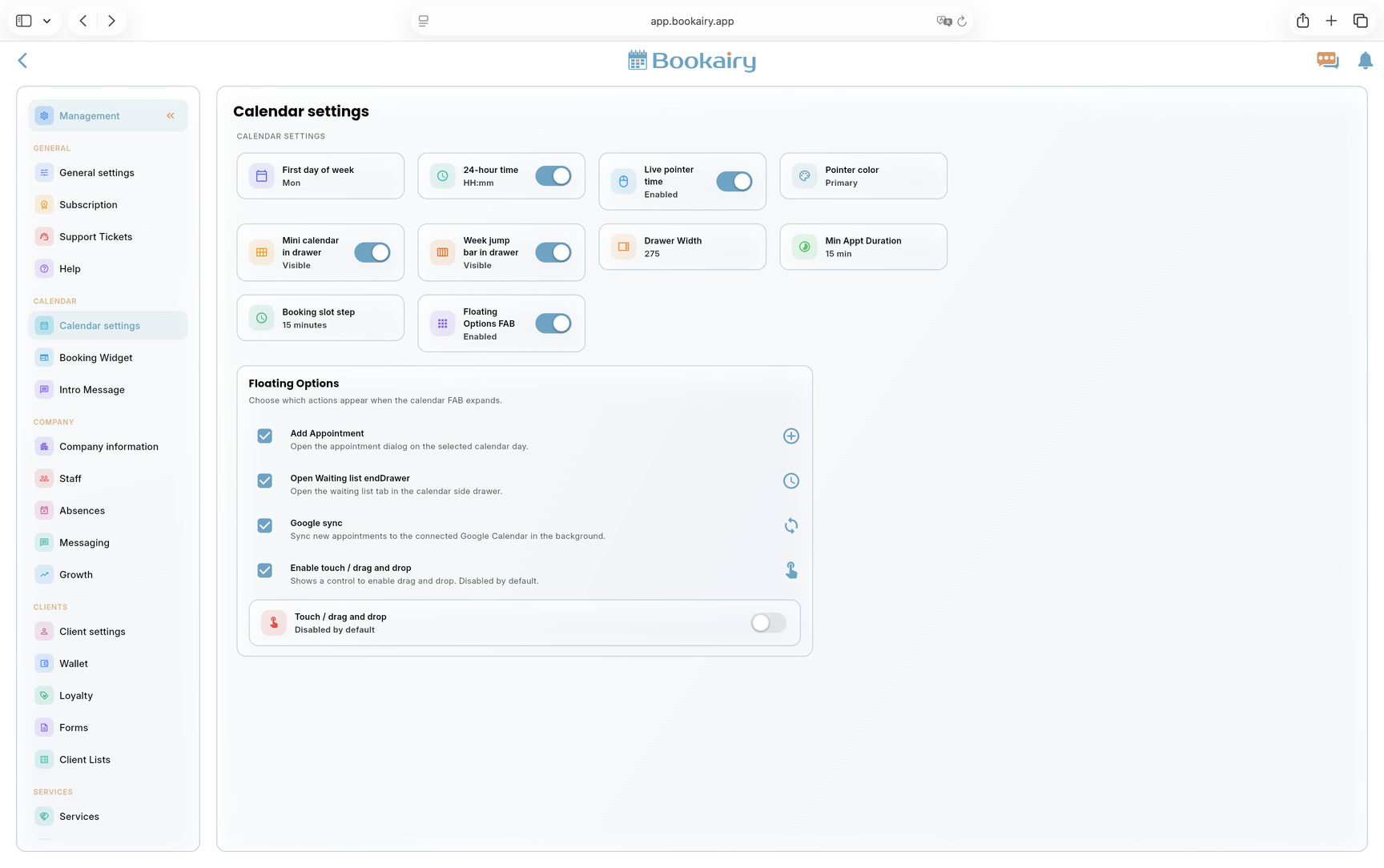
Configure calendar behavior
Open Calendar settings and make the calendar match the way the company works. These settings affect daily planning speed and how clearly staff can read availability.
- Choose Monday or Sunday as the first day, enable 24-hour time if needed, and set the live pointer color.
- Set the minimum appointment duration and booking slot step so online bookings land on useful time intervals.
- Enable drawer tools and floating options only for actions the staff actually uses, such as appointment creation, waiting list and Google sync.
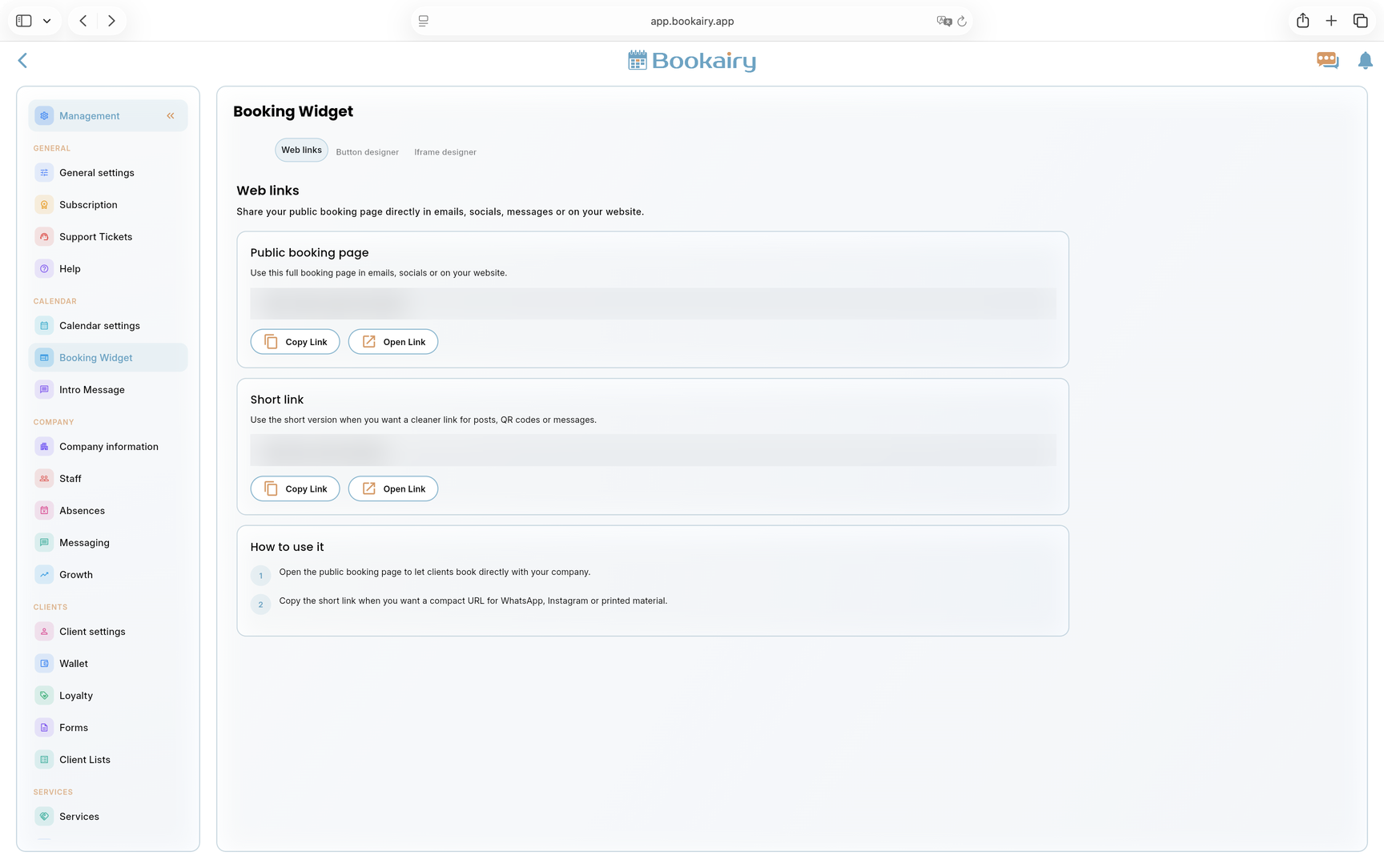
Prepare the booking links
Open Booking Widget. The first tab gives the public booking page and the short booking link that can be used on the website, Google Business Profile, social profiles and email signatures.
- Copy the public booking page URL and test it in a browser before sharing it.
- Use the short link for printed material or places where space is limited.
- Use the button designer or iframe designer when the company wants to embed Bookairy into an existing website.
Add a public intro message
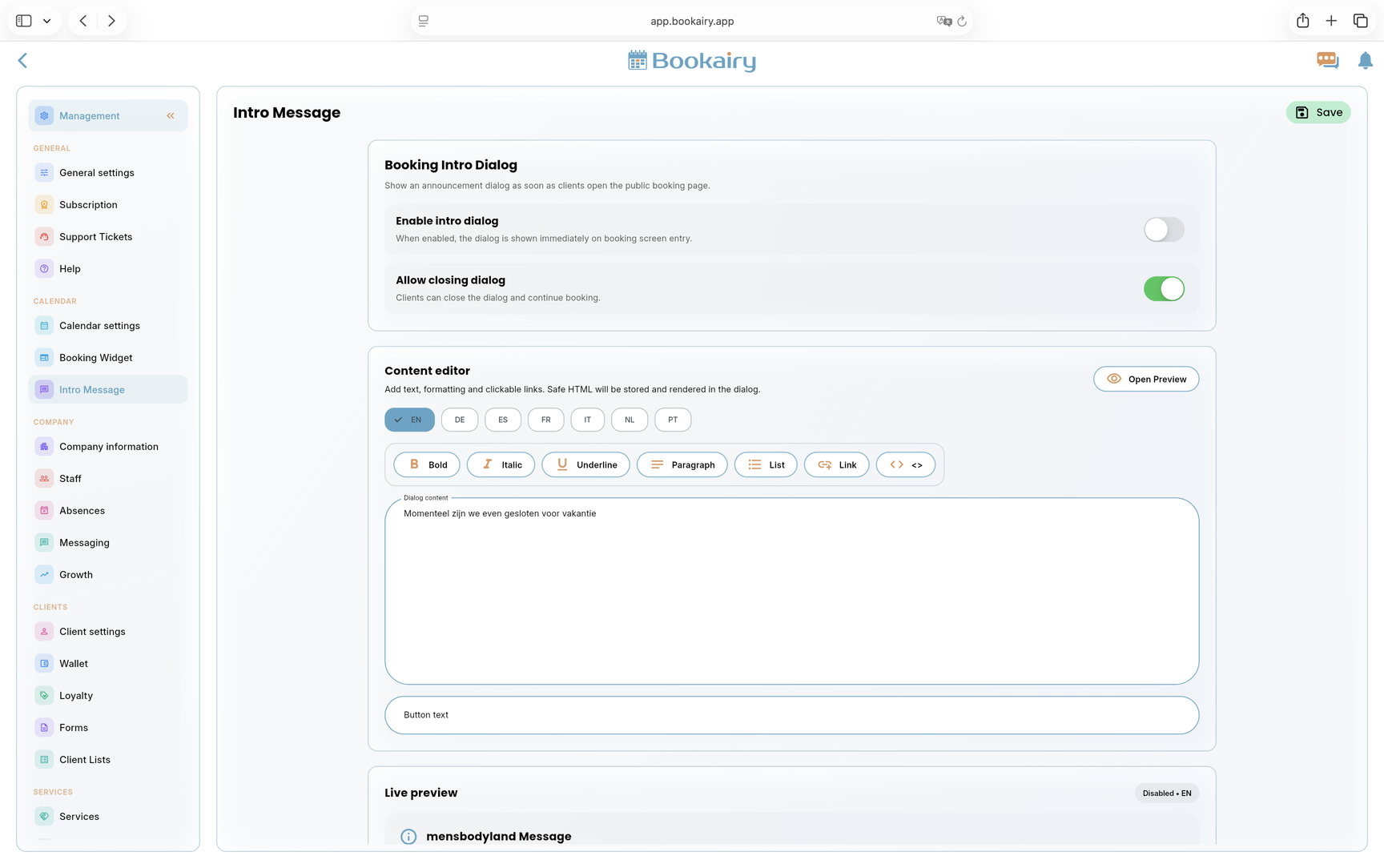
Use Intro Message when the public booking screen must show an announcement before clients continue. This is useful for holiday closures, temporary rules, promotions or important service information.
- Enable the intro dialog only when clients need to see the message before booking.
- Allow closing the dialog for informational messages; keep it stricter for critical warnings.
- Write the content and button text for every supported language, then check the live preview before saving.
Complete the company profile
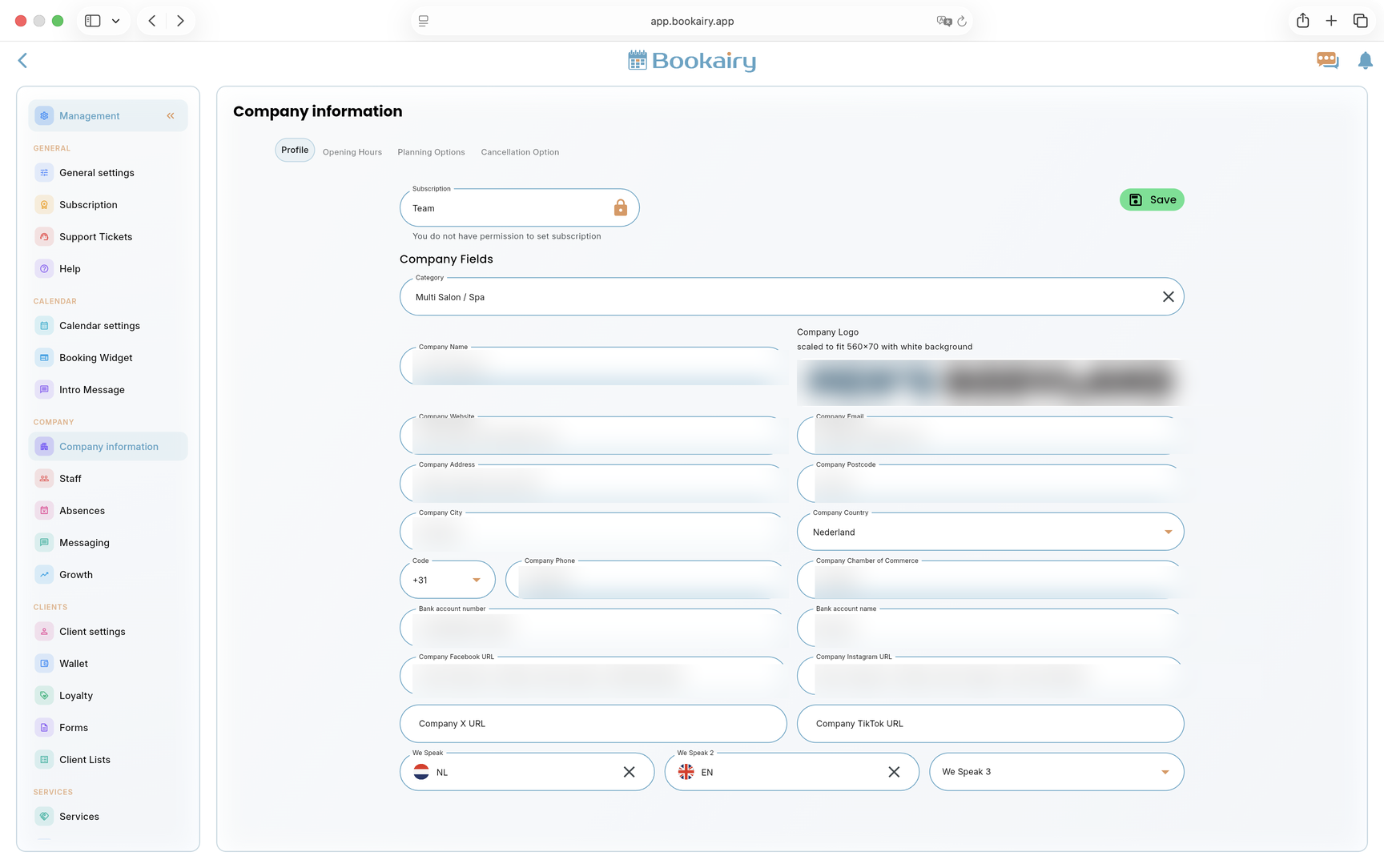
Open Company information and fill the profile tab. This data appears in client communication, public booking details and administration screens.
- Add the company category, name, website, email, address, phone number and official business details.
- Upload a clean company logo that remains readable on a white background.
- Select the spoken languages clients can use when they contact or book with the company.
Set company opening hours
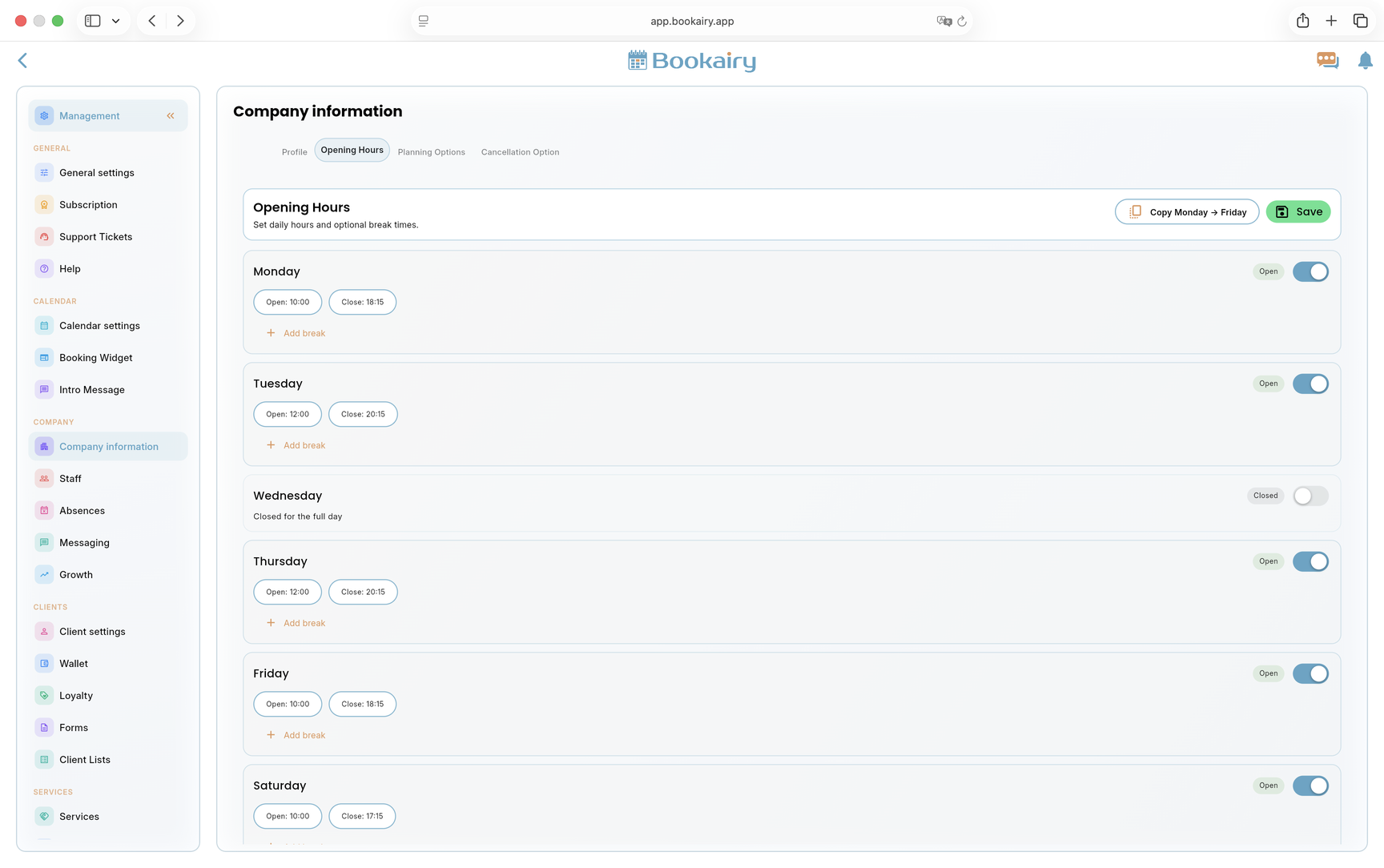
Move to the Opening Hours tab. These are the default business hours that form the base for online availability and internal planning.
- Set open and close times for every working day and disable days when the company is closed.
- Add breaks when the full business day should not be bookable.
- Use copy actions for repeated weekday hours, then save the full week.
Define booking lead time and horizon
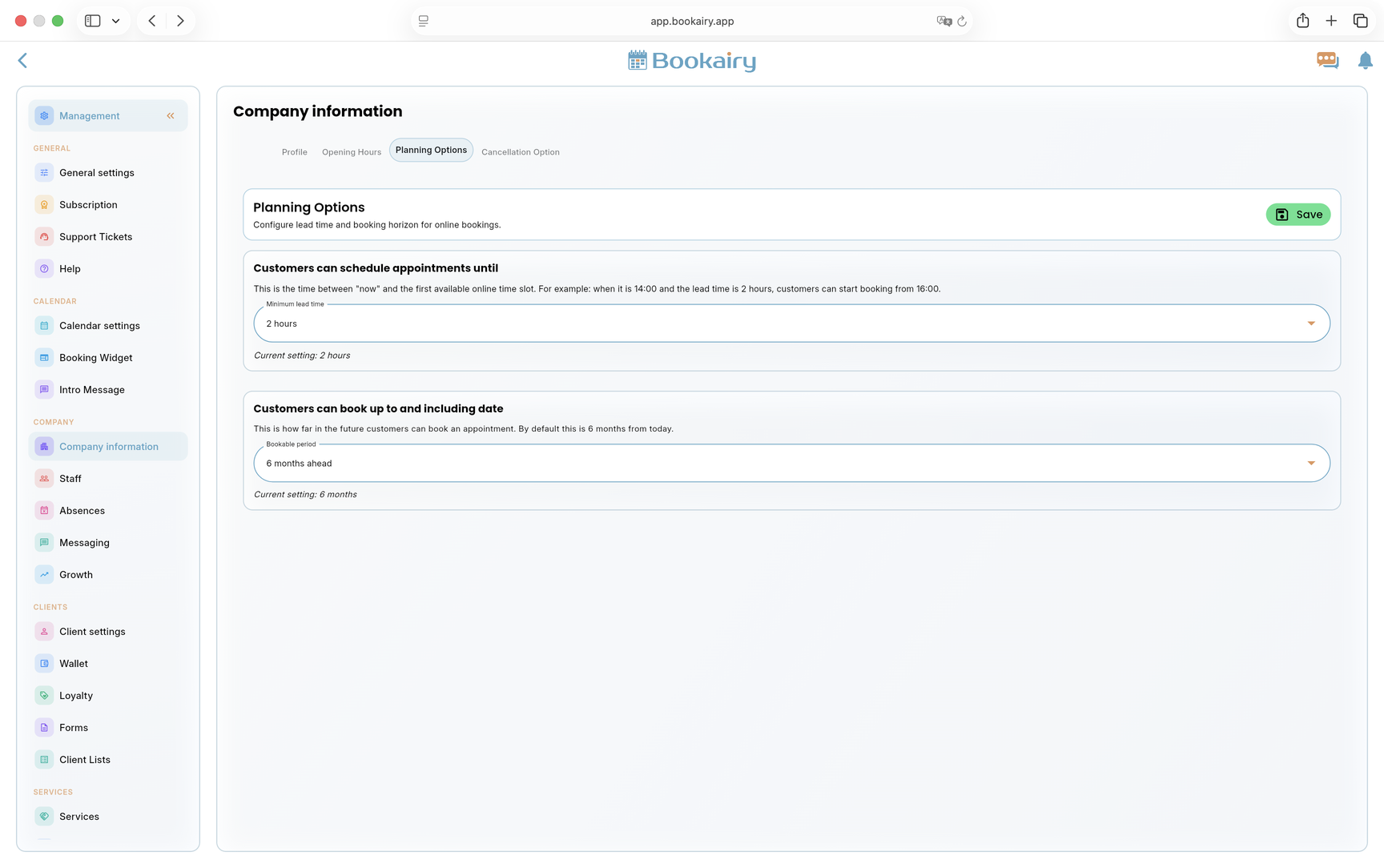
Open Planning Options. This controls how soon a client can book and how far into the future the public booking screen shows availability.
- Set the minimum lead time to protect staff from last-minute online bookings.
- Set the bookable period so the calendar opens far enough ahead for normal client planning.
- Use stricter rules for high-demand businesses and looser rules for teams that accept same-day planning.

Set the cancellation deadline
Open Cancellation Option and choose how late clients may cancel their own appointment. This protects booked time while keeping self-service clear.
- Set the deadline in hours before the appointment, for example 24 hours.
- Make sure the cancellation policy is also visible in email templates or booking terms.
- Remember that staff can still edit or cancel appointments manually when a special case needs help.
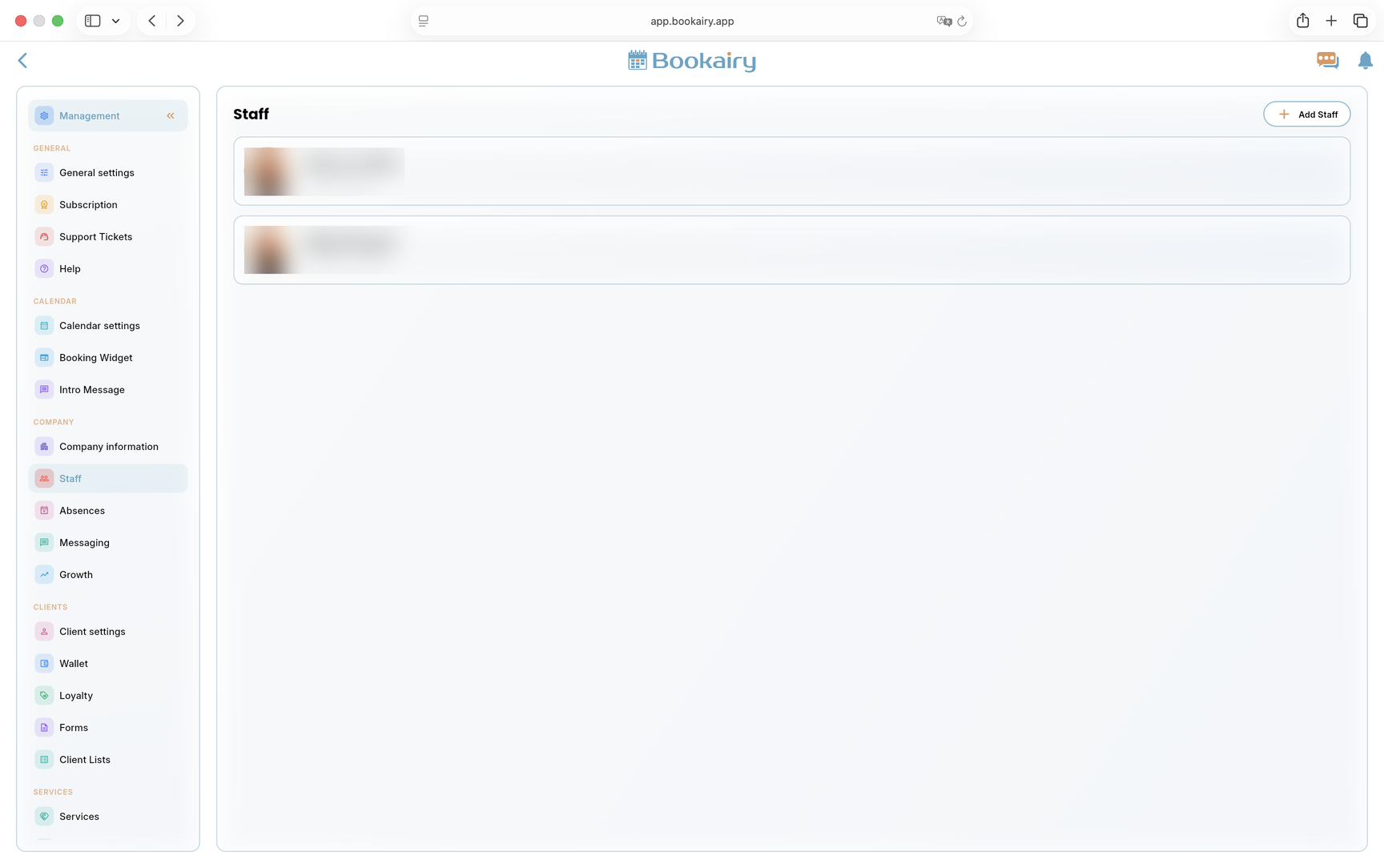
Add staff members
Open Staff and create a profile for every person who appears in planning, performs services or manages the company. Staff must exist before services, permissions and working hours can be assigned correctly.
- Use Add Staff for each team member, including owners and managers.
- Check that the displayed role matches the responsibility of each person.
- Keep inactive or future staff out of online availability until their profile is ready.
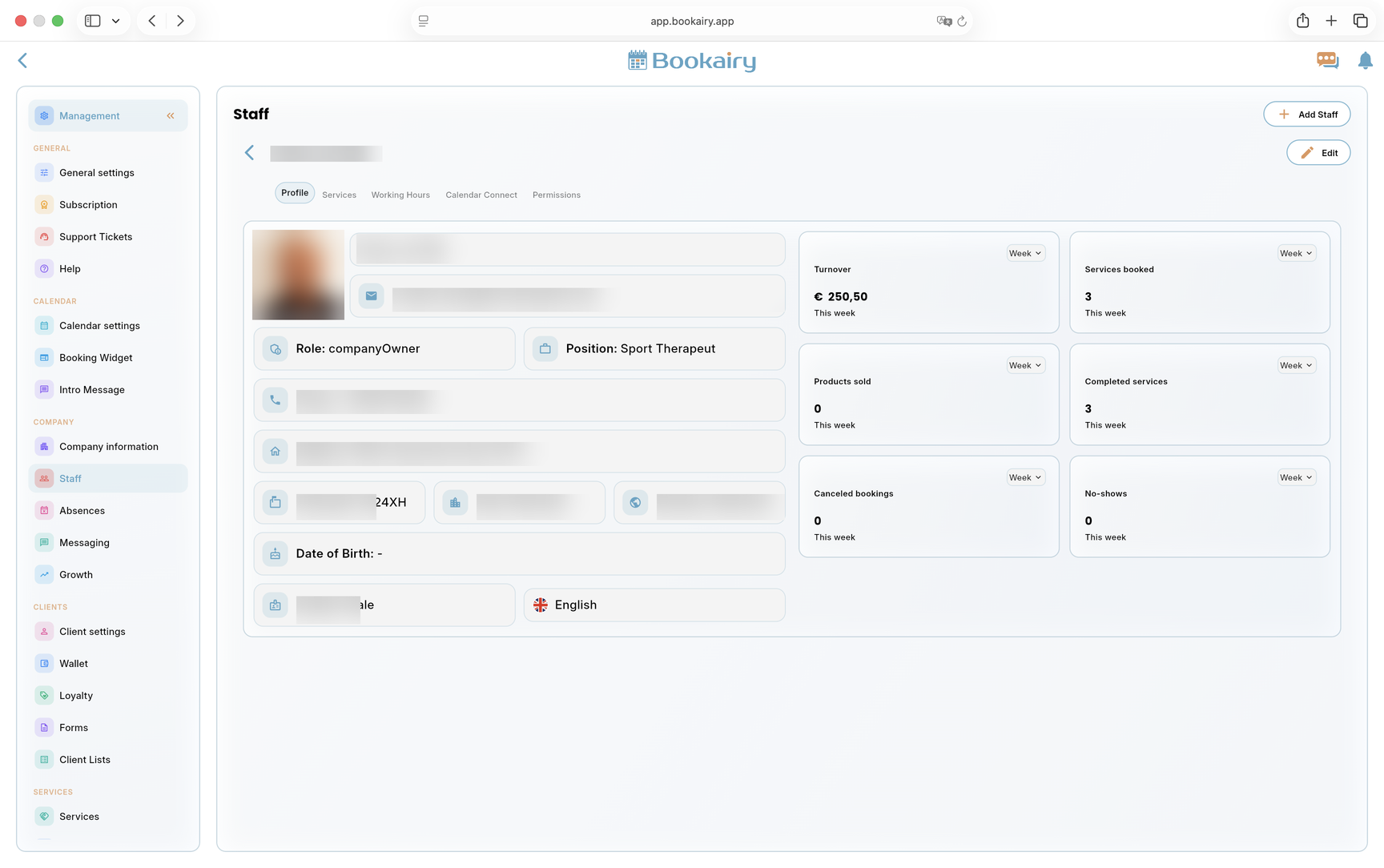
Verify each staff profile
Open a staff member and review the Profile tab. The profile stores contact details, role, position, language and personal information needed for scheduling and administration.
- Add or correct the profile image, name, email, phone number, address, position and language.
- Confirm the role, such as company owner, co-owner, manager or staff member.
- Use the performance panel as a read-only check after the company starts operating.
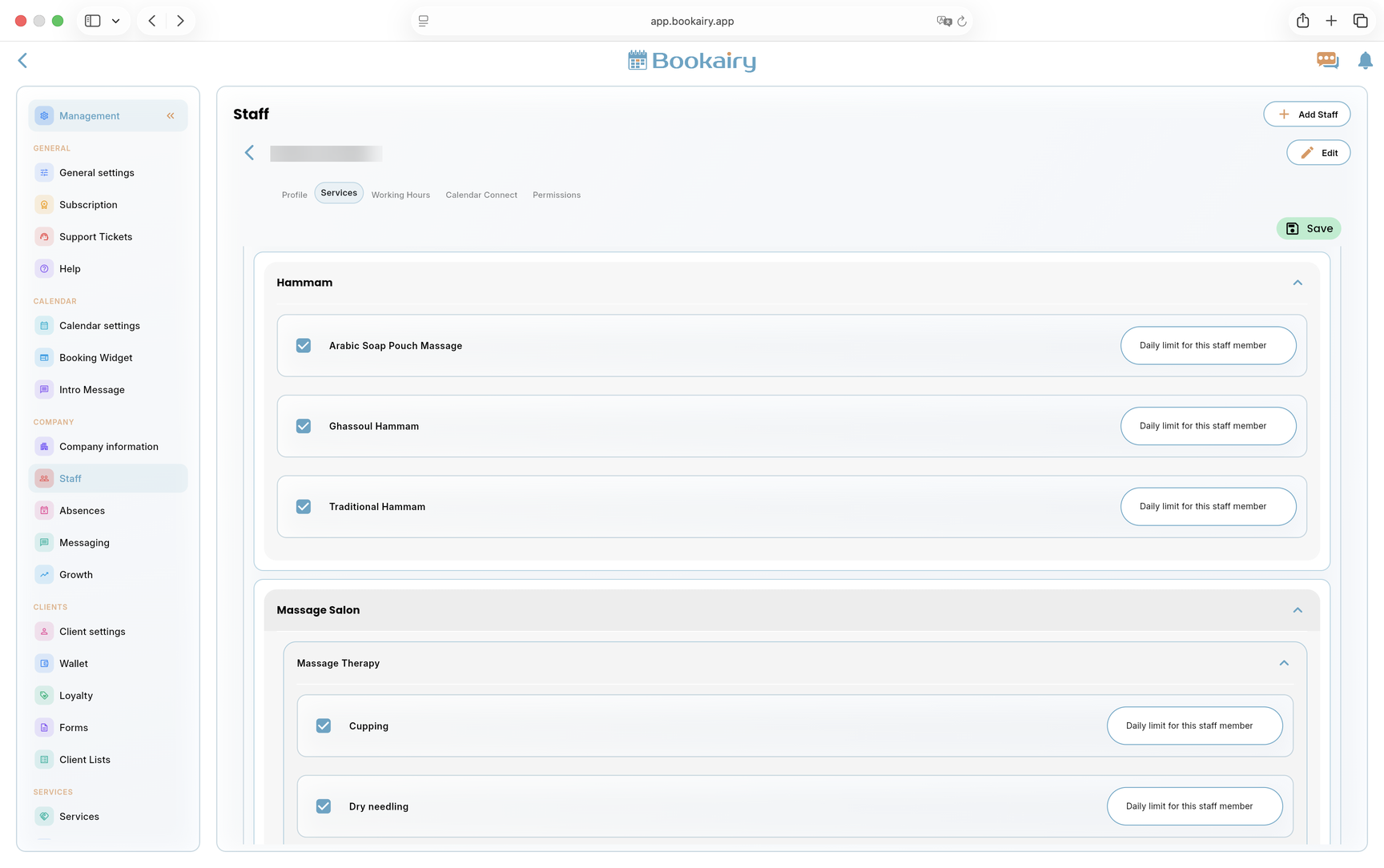
Assign services to staff
Move to the Services tab inside the staff profile. This decides which services the person can receive bookings for.
- Tick every service this staff member is trained and allowed to perform.
- Use daily limits for services that should not be booked too often for one person.
- Save the assignment before checking the public booking availability.
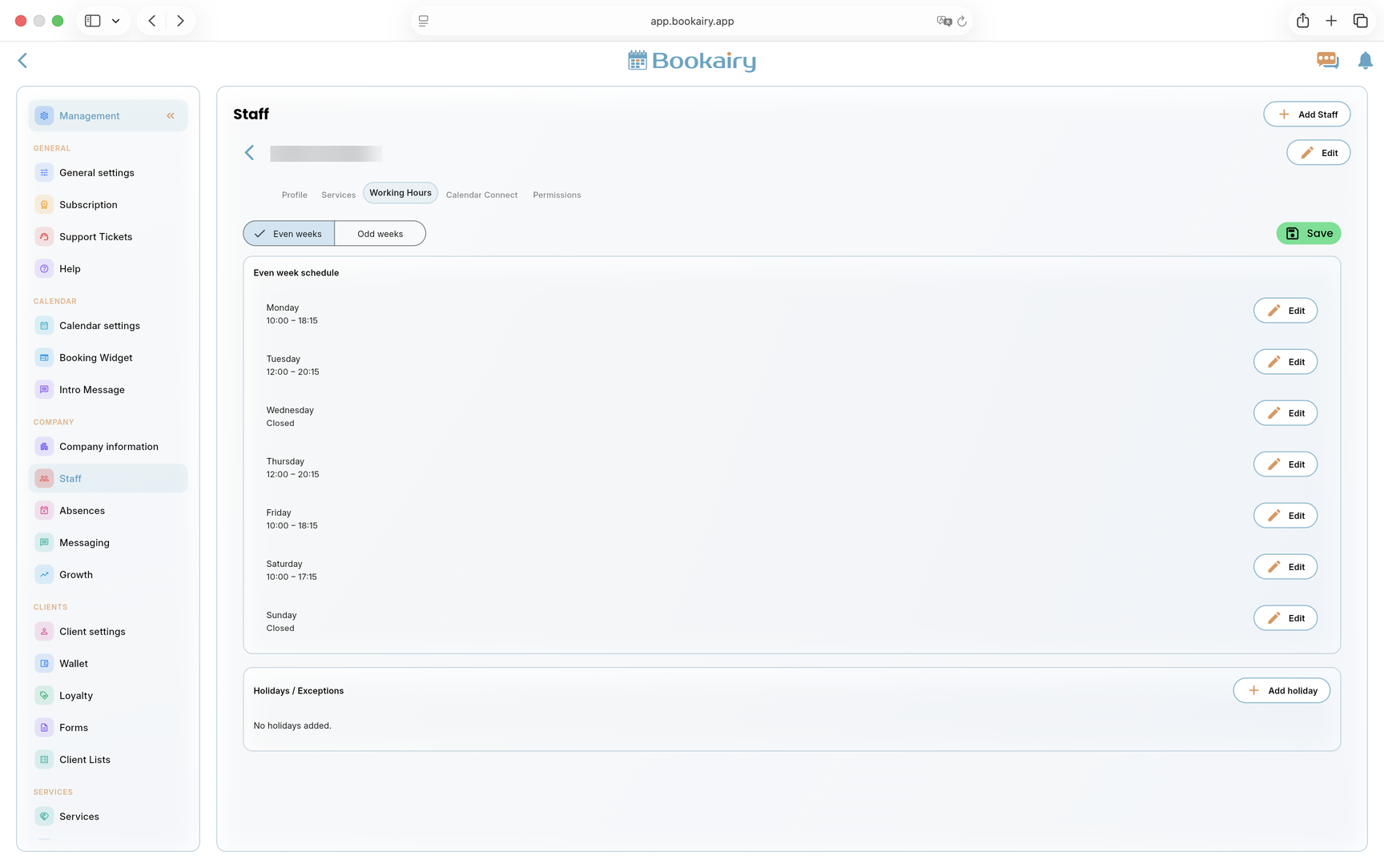
Set staff working hours
Open Working Hours for each staff member. Staff hours refine the company opening hours and decide when this person can be booked.
- Set the schedule for each day and mark days off as closed.
- Use even and odd weeks when the staff member has alternating shifts.
- Add holidays or exceptions for individual absence that should not close the whole company.
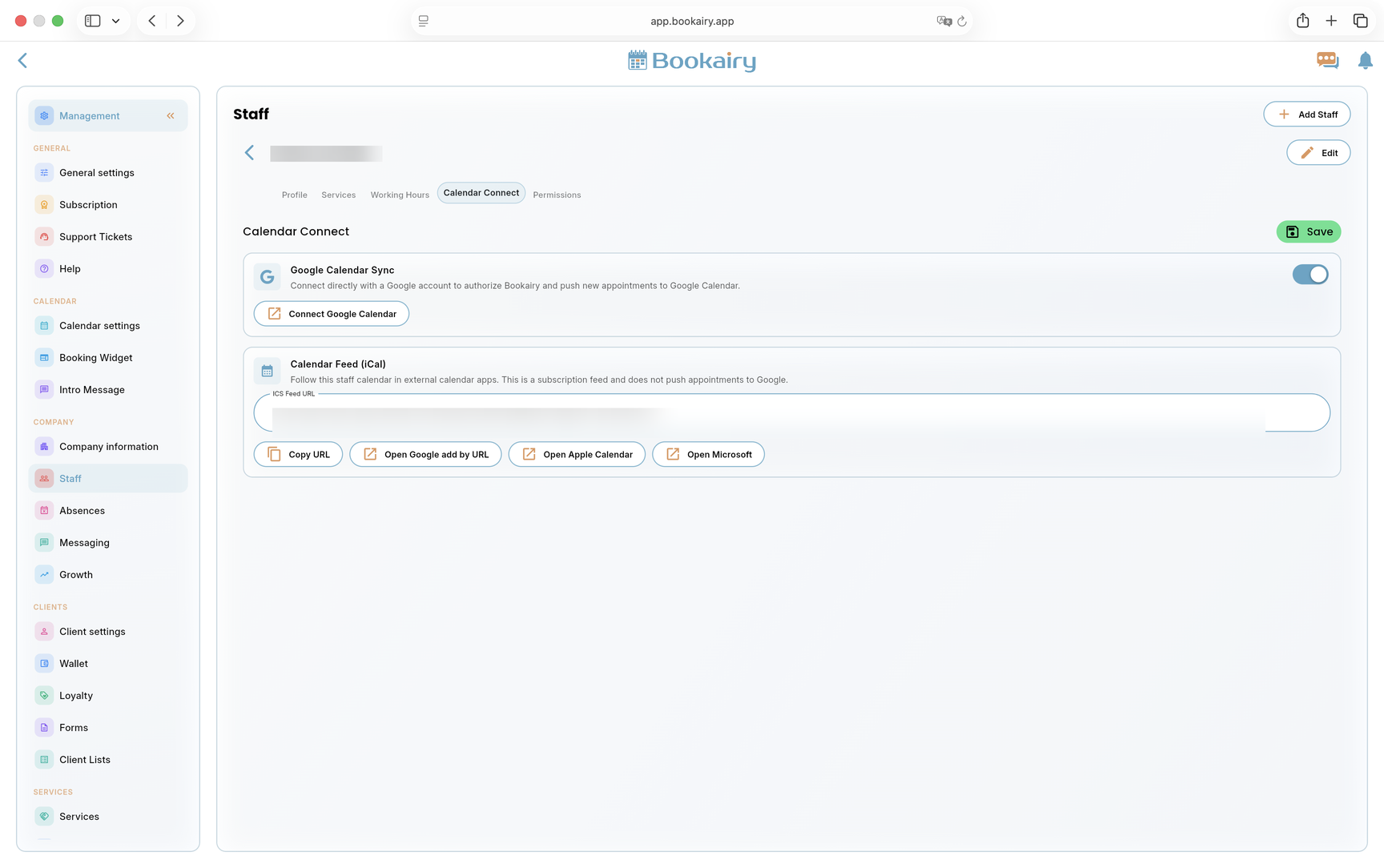
Connect staff calendars
Open Calendar Connect when a staff member wants Bookairy appointments in an external calendar. Choose the connection method that matches the device and privacy needs.
- Enable Google Calendar sync for staff who need Google integration.
- Use the iCal feed URL for Apple Calendar, Microsoft calendars or read-only calendar subscriptions.
- Copy or open the correct link and confirm that test appointments appear externally.
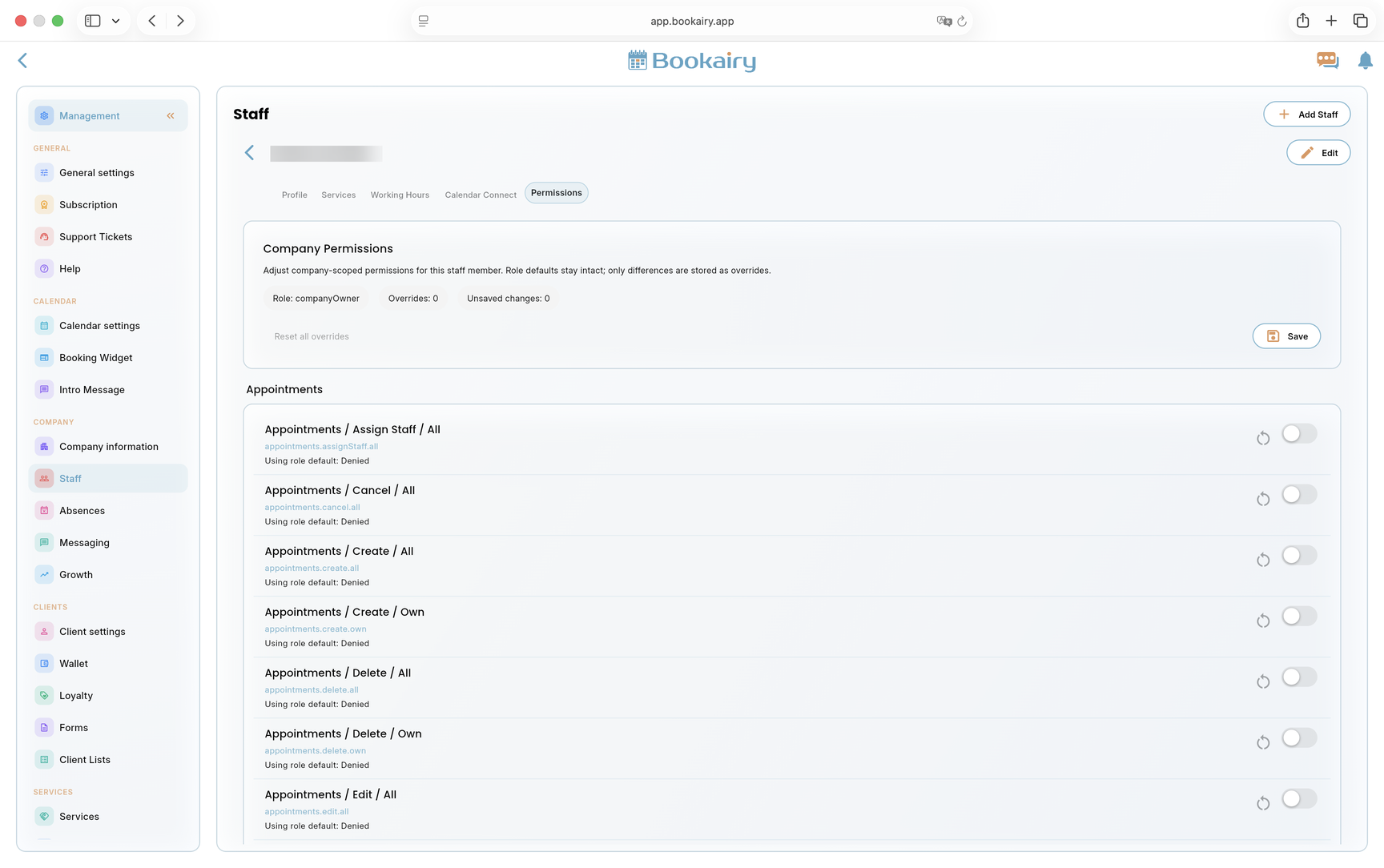
Review staff permissions
Open Permissions. Start with the role defaults and only add overrides when the person really needs extra access.
- Check the active role and the number of permission overrides.
- Enable appointment actions such as create, edit, cancel or delete based on the staff member's job.
- Save permissions and test with a limited staff account before giving broad management access.
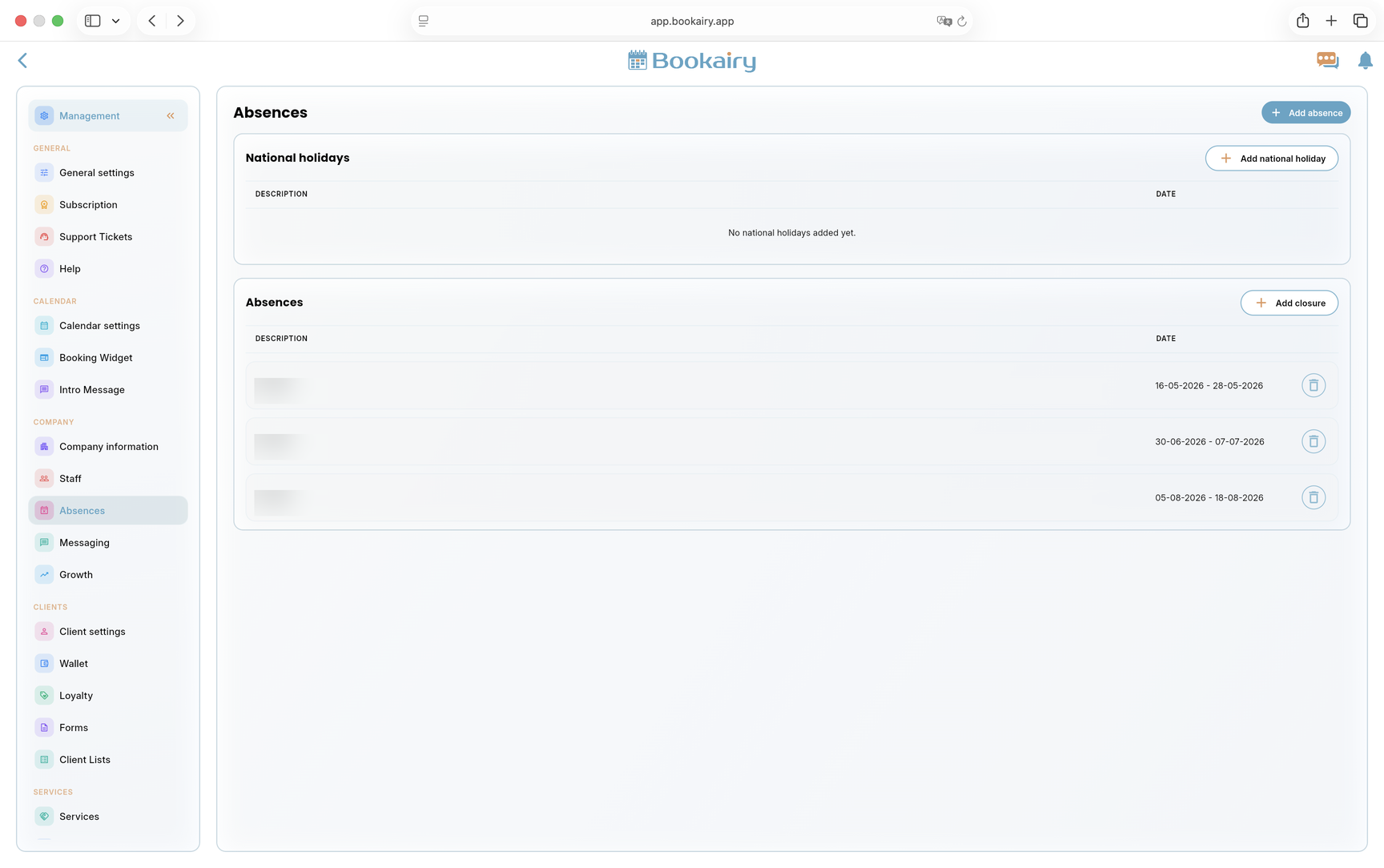
Add holidays and closures
Open Absences. Company closures and national holidays prevent clients from booking time that should not be available.
- Add national holidays for the country or region where the company works.
- Add closures such as holidays, renovations, training days or temporary shutdowns.
- Check the public booking calendar after saving to confirm closed periods are blocked.
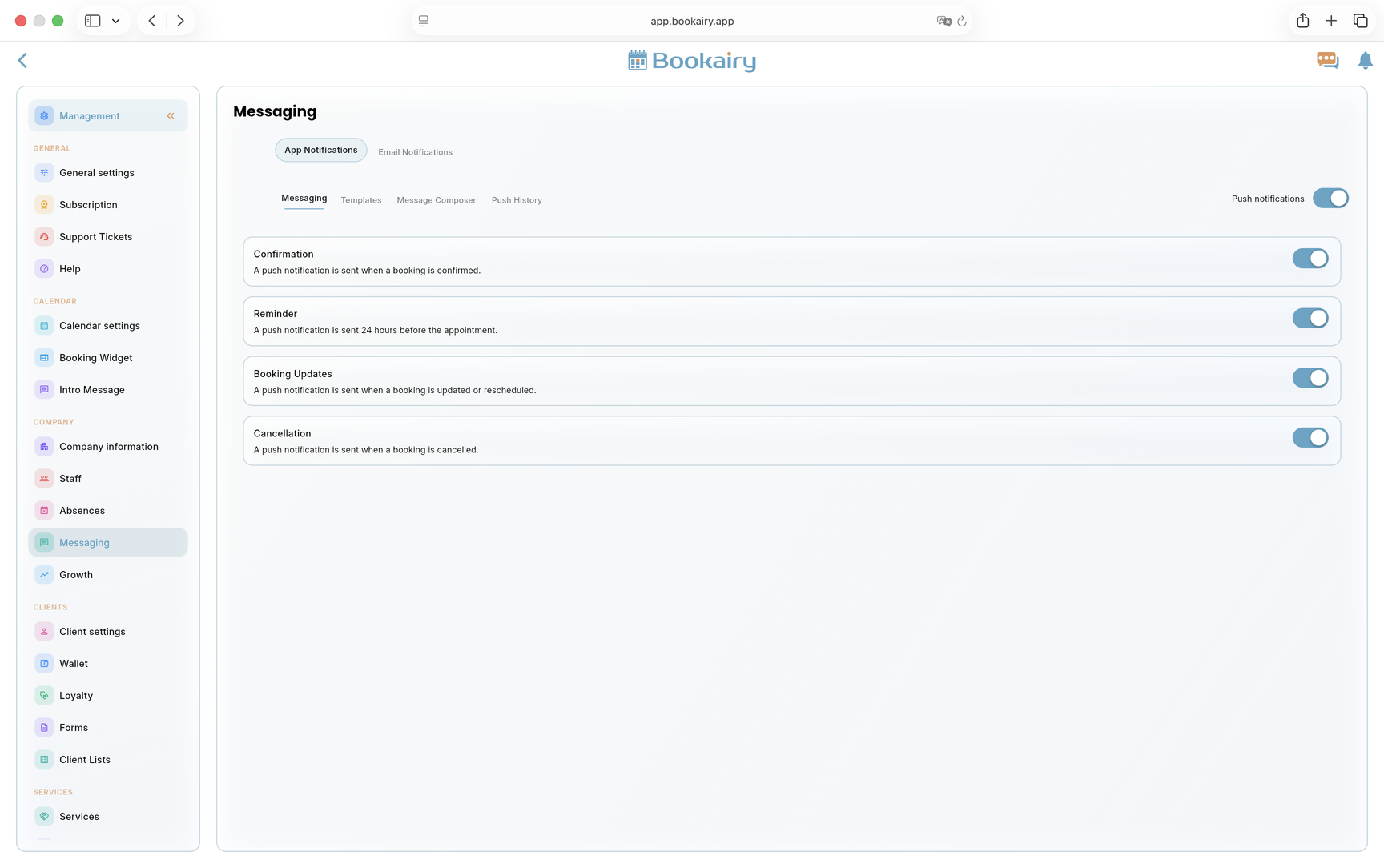
Configure app notifications
Open Messaging and start with App Notifications. These settings control which appointment events generate in-app or push notifications.
- Enable push notifications for active users who need booking alerts.
- Choose which events should notify staff, such as confirmations, reminders, updates and cancellations.
- Keep notifications focused so the team sees important messages instead of noise.
Configure email templates
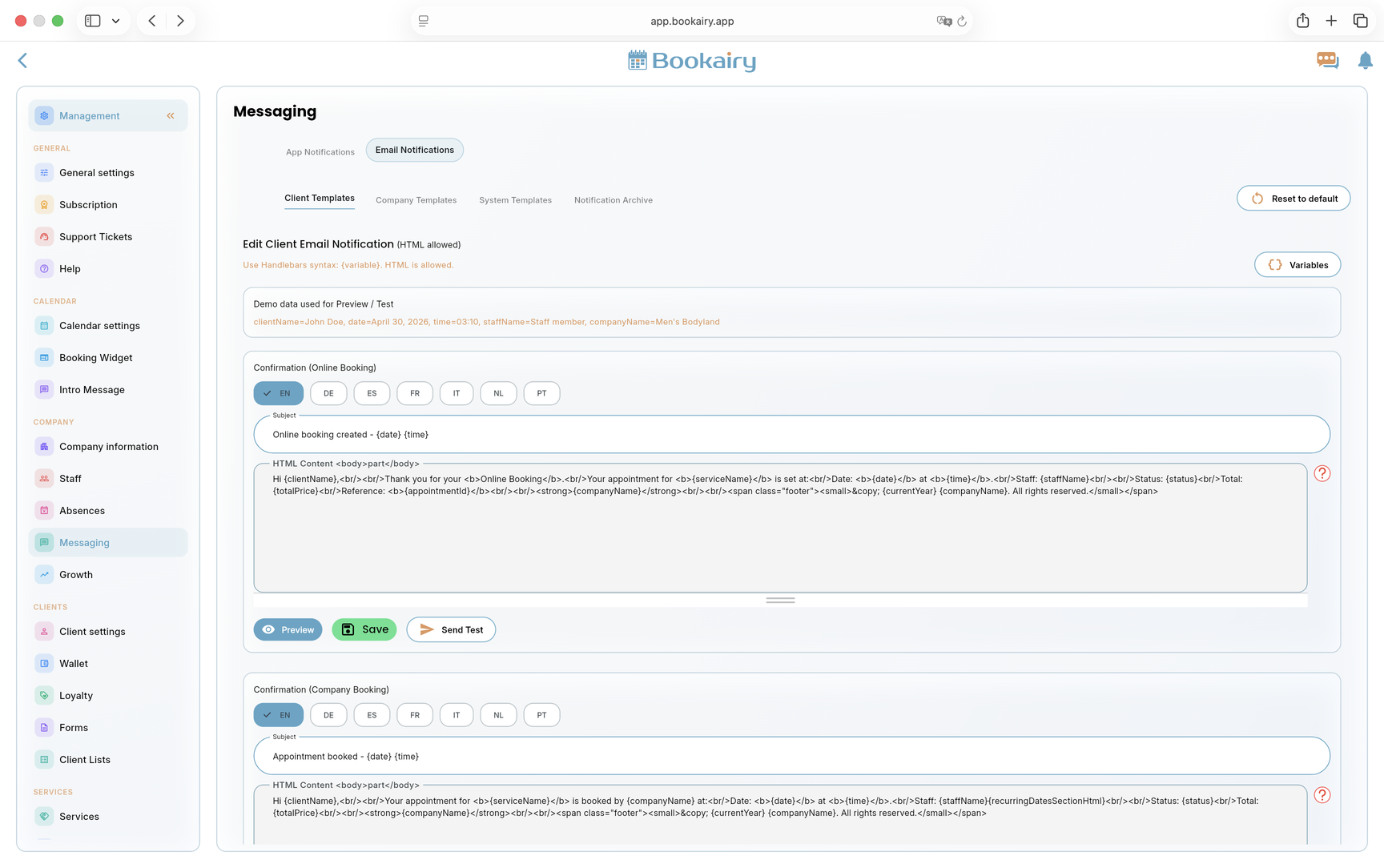
Move to Email Notifications. Review client, company and system templates before going live, because these messages are what clients receive after booking changes.
- Edit templates in every supported language and keep the tone consistent with the company brand.
- Use the available variables for client name, date, time, staff name and company name instead of typing fixed values.
- Preview, send a test email and save each important template before publishing the booking link.
Set loyalty rewards
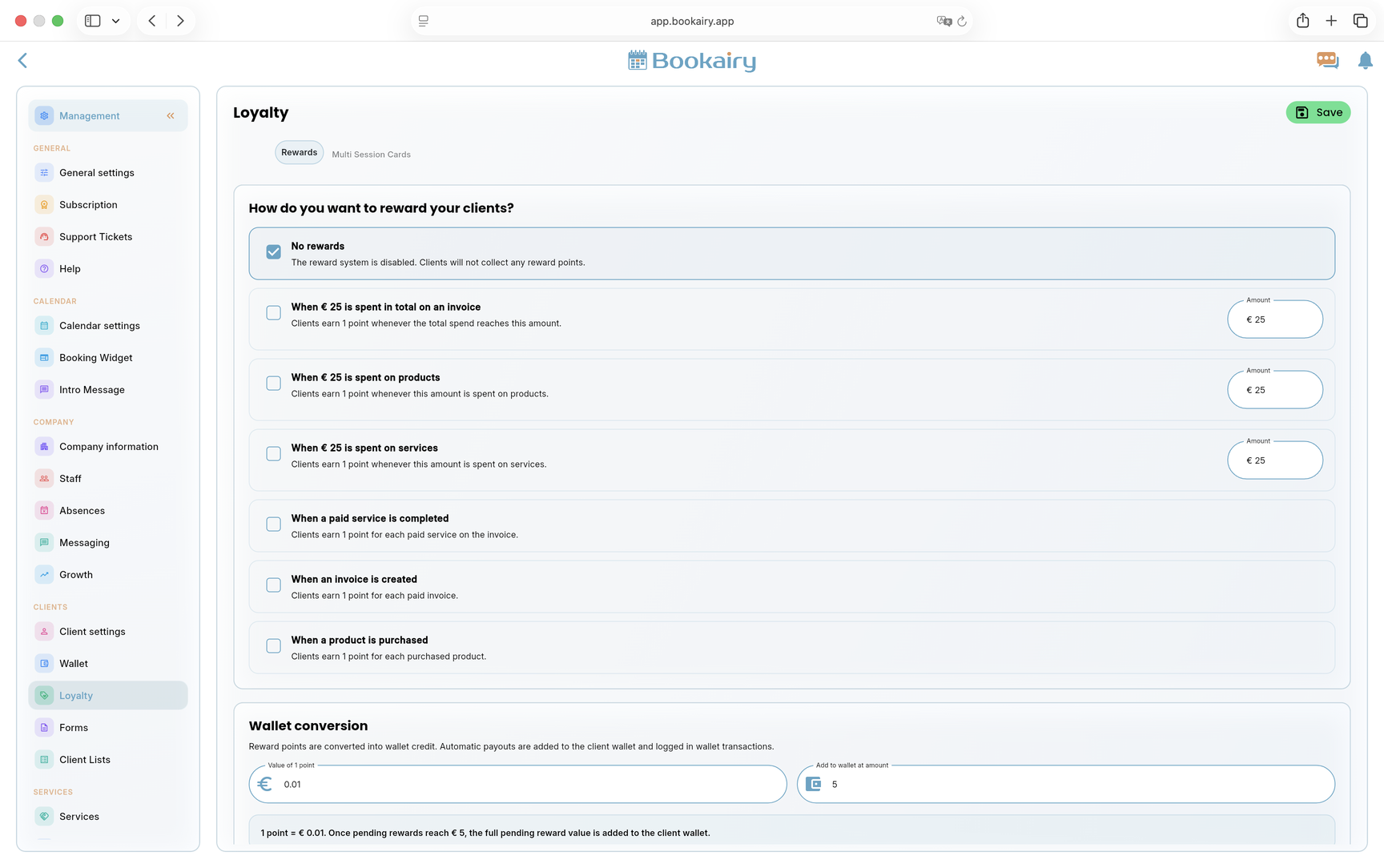
Open Loyalty Rewards if the company wants to reward repeat clients. Leave it disabled if loyalty points are not part of the launch.
- Choose whether clients earn points from spend, completed services, invoices or product purchases.
- Set the value of one point and the Wallet conversion threshold.
- Save the rules and explain the reward policy clearly to staff before clients start earning points.
Organize service categories
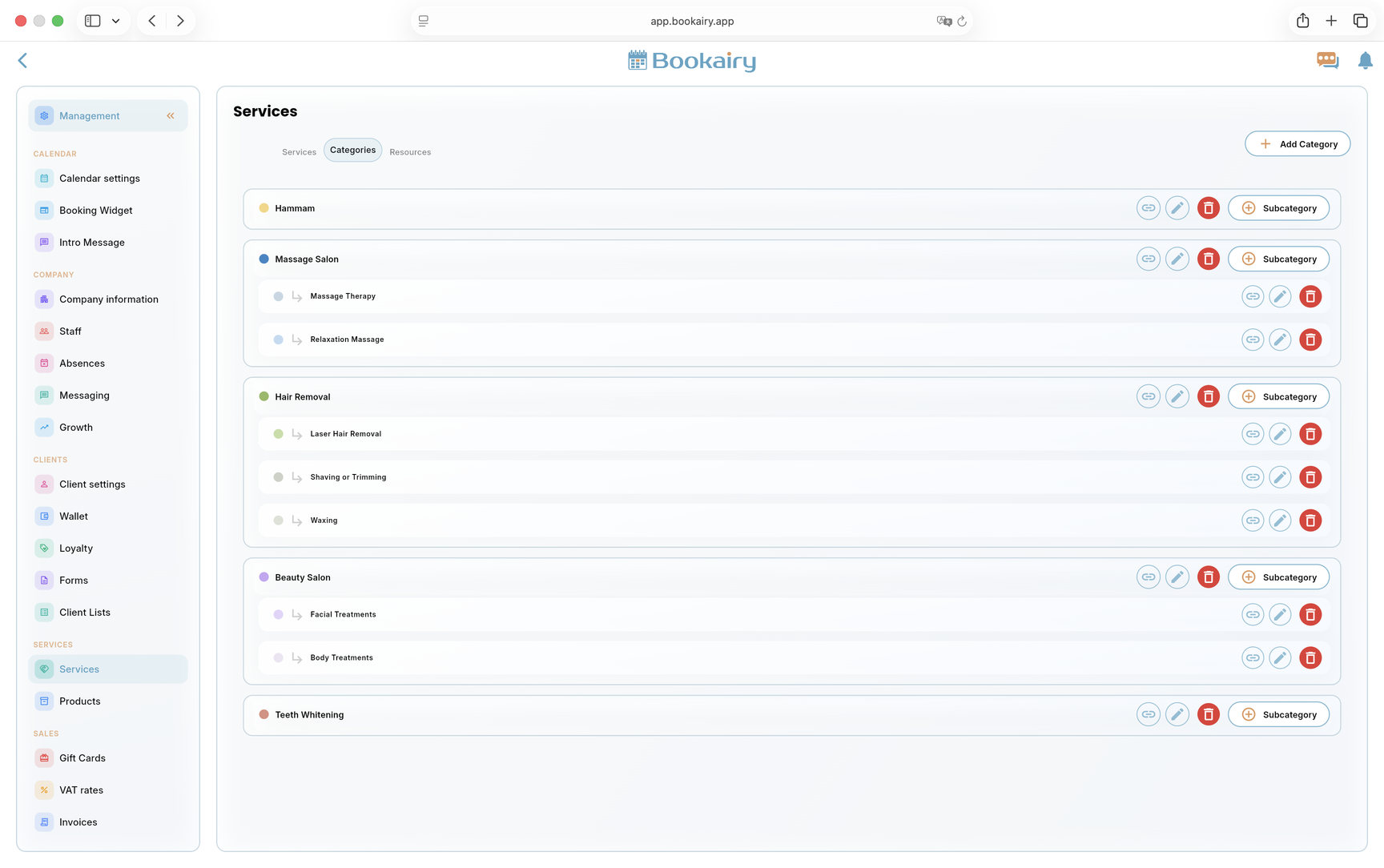
Move to the Categories tab before setting up services. Before we set up a service, we need to define the categories, because categories and subcategories help clients find the right service and give the business useful direct booking links.
- Create top-level categories such as hammam, massage, hair removal, beauty or teeth whitening.
- Add subcategories when a category contains different service groups.
- Use category link buttons for campaigns, seasonal offers or social promotions.
Add rooms and resources
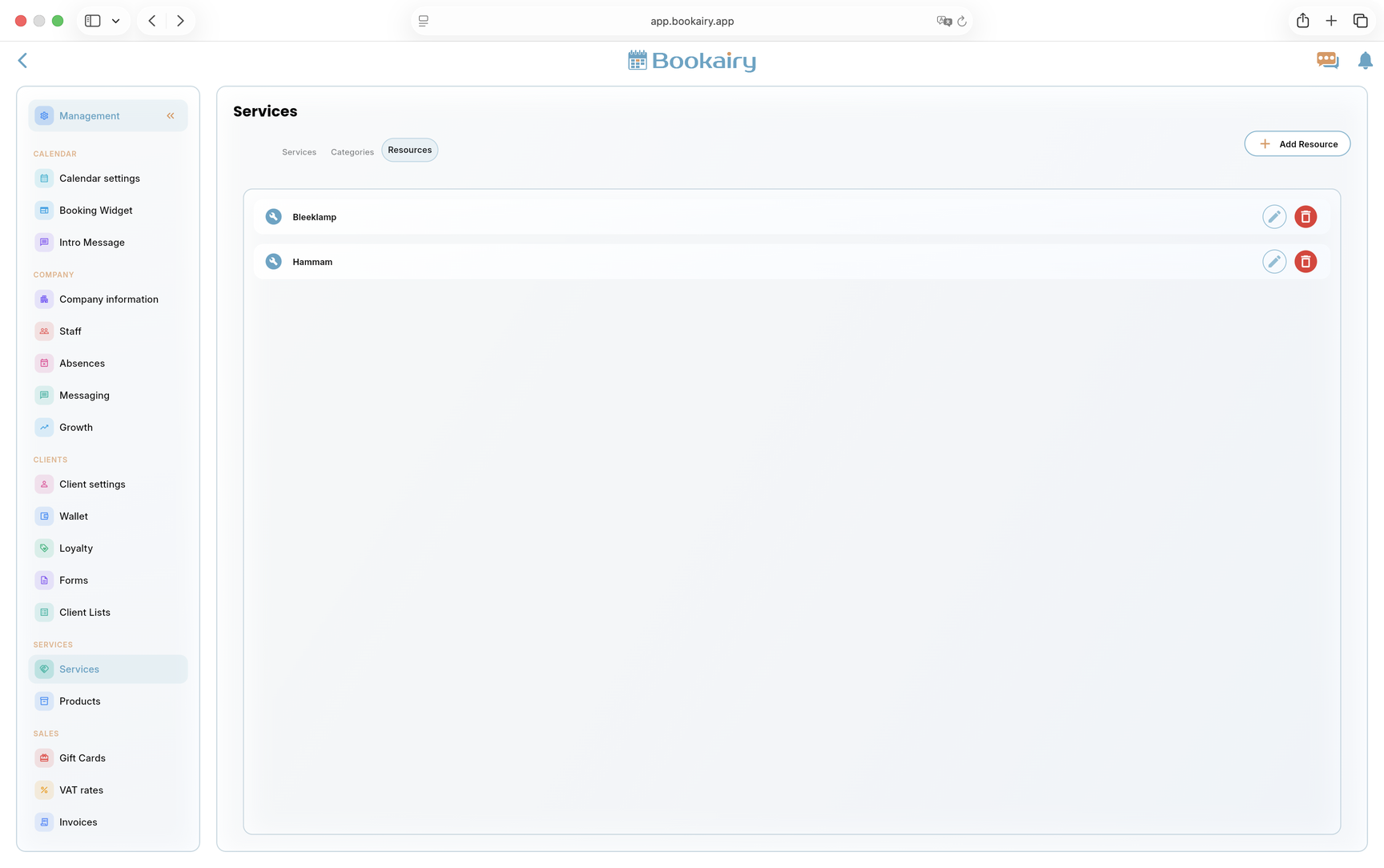
Open the Resources tab before setting up services. Before we set up a service, we need to know if it needs resources. Resources are rooms, devices or equipment that limit availability independently from staff.
- Add resources such as treatment rooms, hammam rooms, lamps, devices or special equipment.
- Connect resources to services that need them, so Bookairy prevents double bookings.
- Edit or remove resources when the company layout changes.
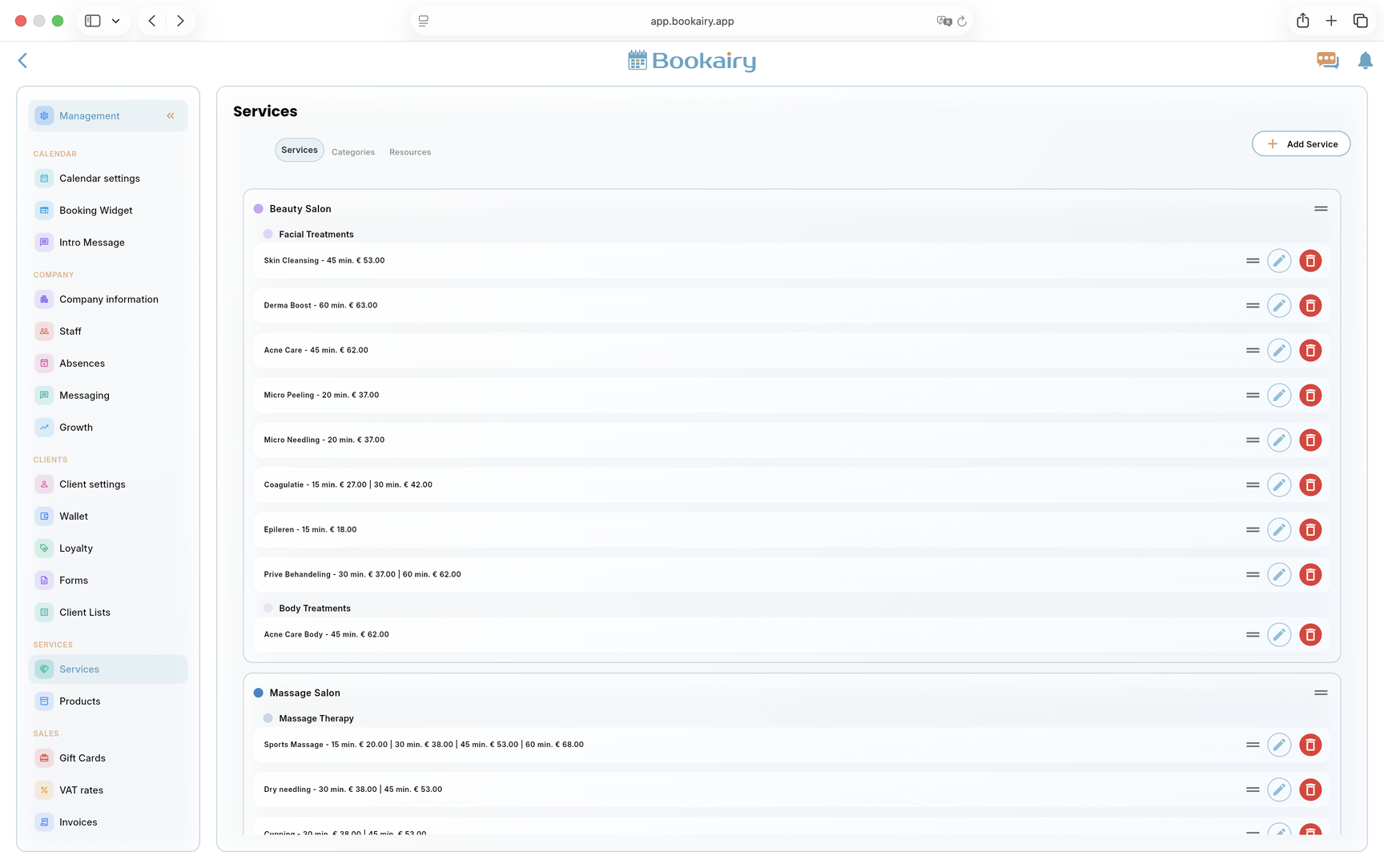
Build the service list
Open Services after categories and resources are ready. This is the main catalogue for online booking, staff planning, POS sales and reporting.
- Add every bookable service with a clear name, duration, price and category.
- Use subcategories so clients can scan the public booking screen quickly.
- Connect resources where needed, then reorder, edit or delete services until the list matches the real menu the company sells.
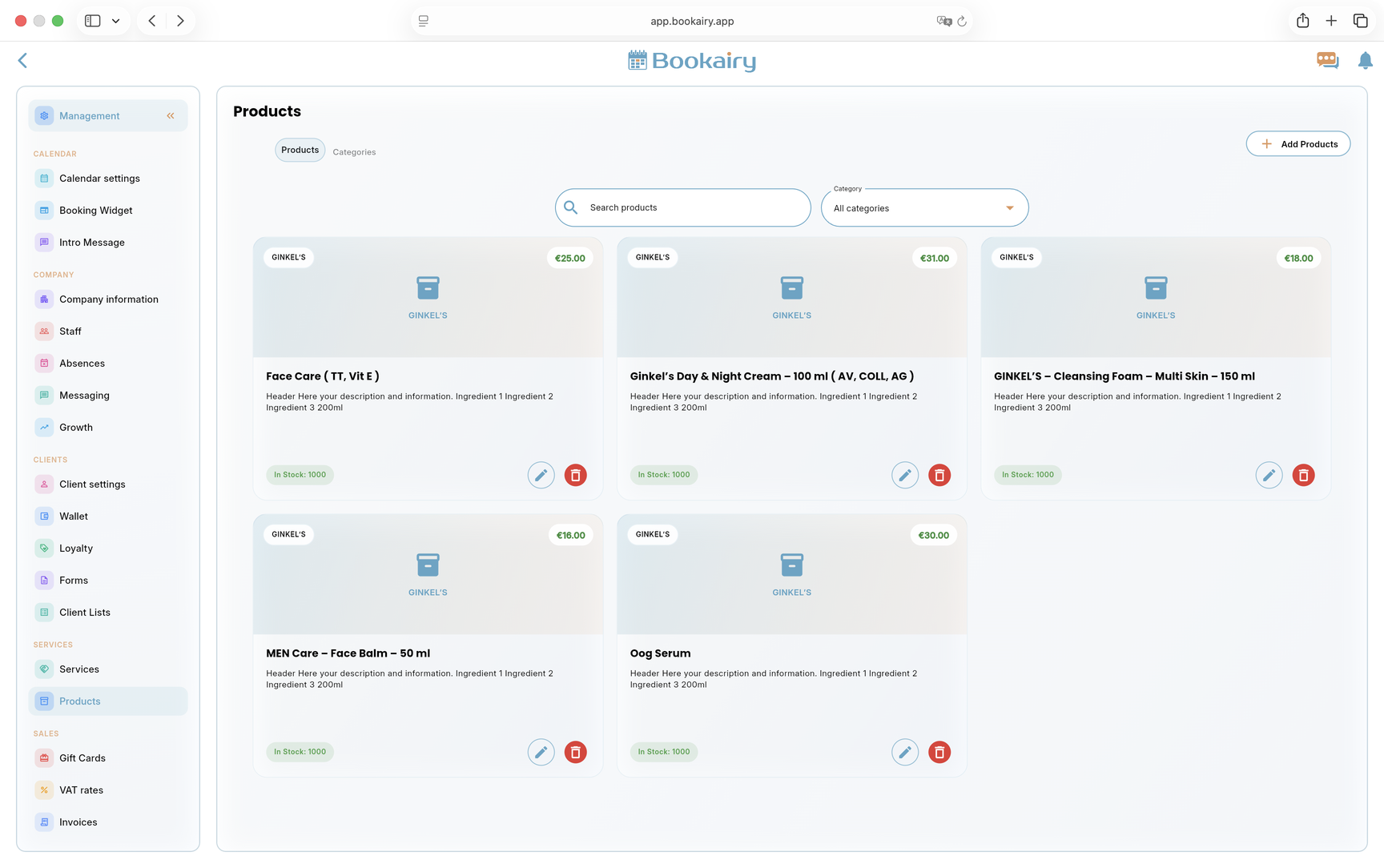
Add retail products
Open Products when the company sells retail items through POS or the booking flow. Products should be added before staff starts taking payments.
- Add product name, category, price and stock for each retail item.
- Use the search and category filters to check that products are easy to find.
- Only enable product sales in the booking screen when the company is ready to fulfil those products.
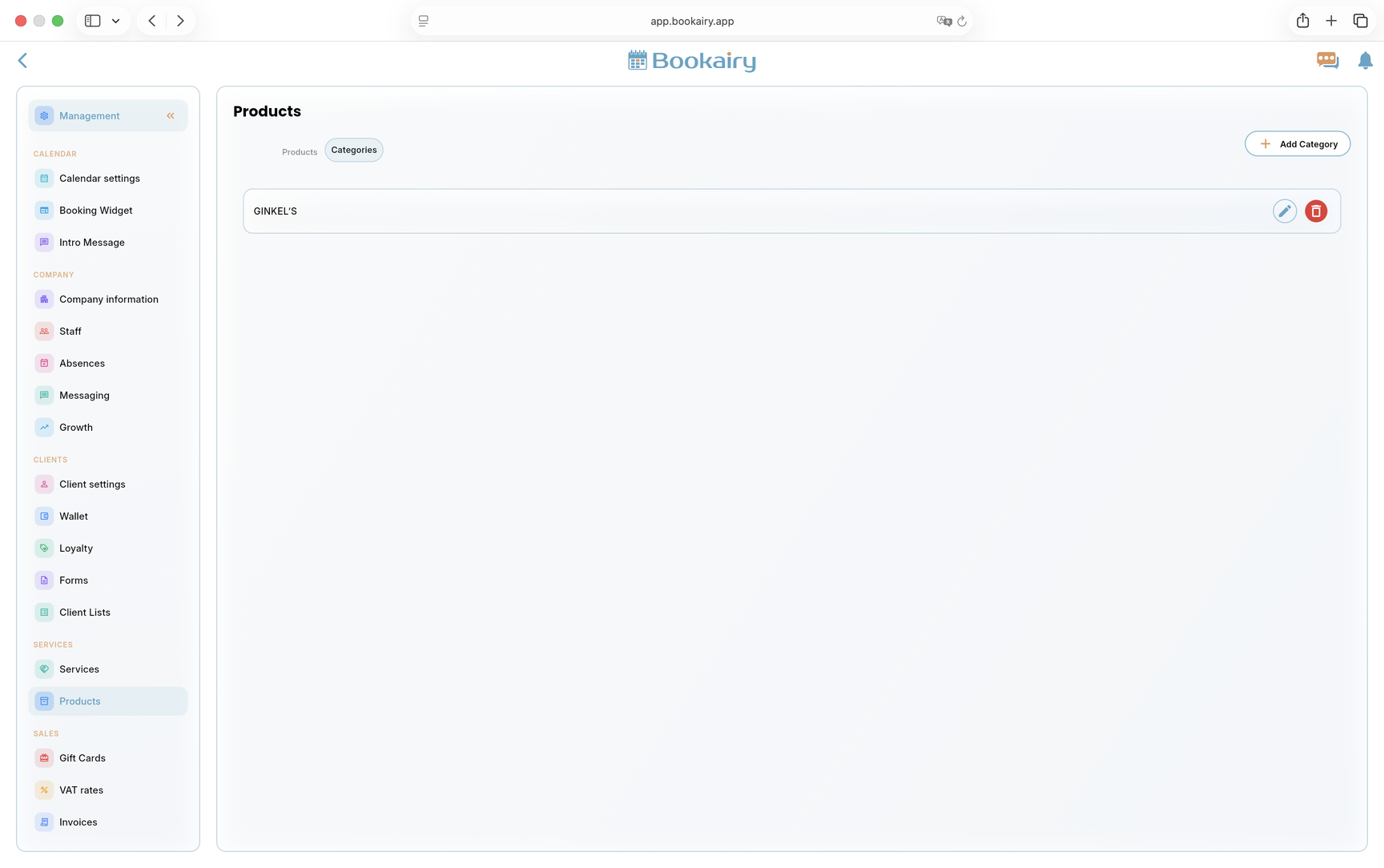
Organize product categories
Move to the Categories tab under products. Categories keep stock management and POS searching clear when the product catalogue grows.
- Create brand or product group categories before entering many individual products.
- Edit category names when supplier or brand naming changes.
- Delete unused categories only after checking that no active products still depend on them.
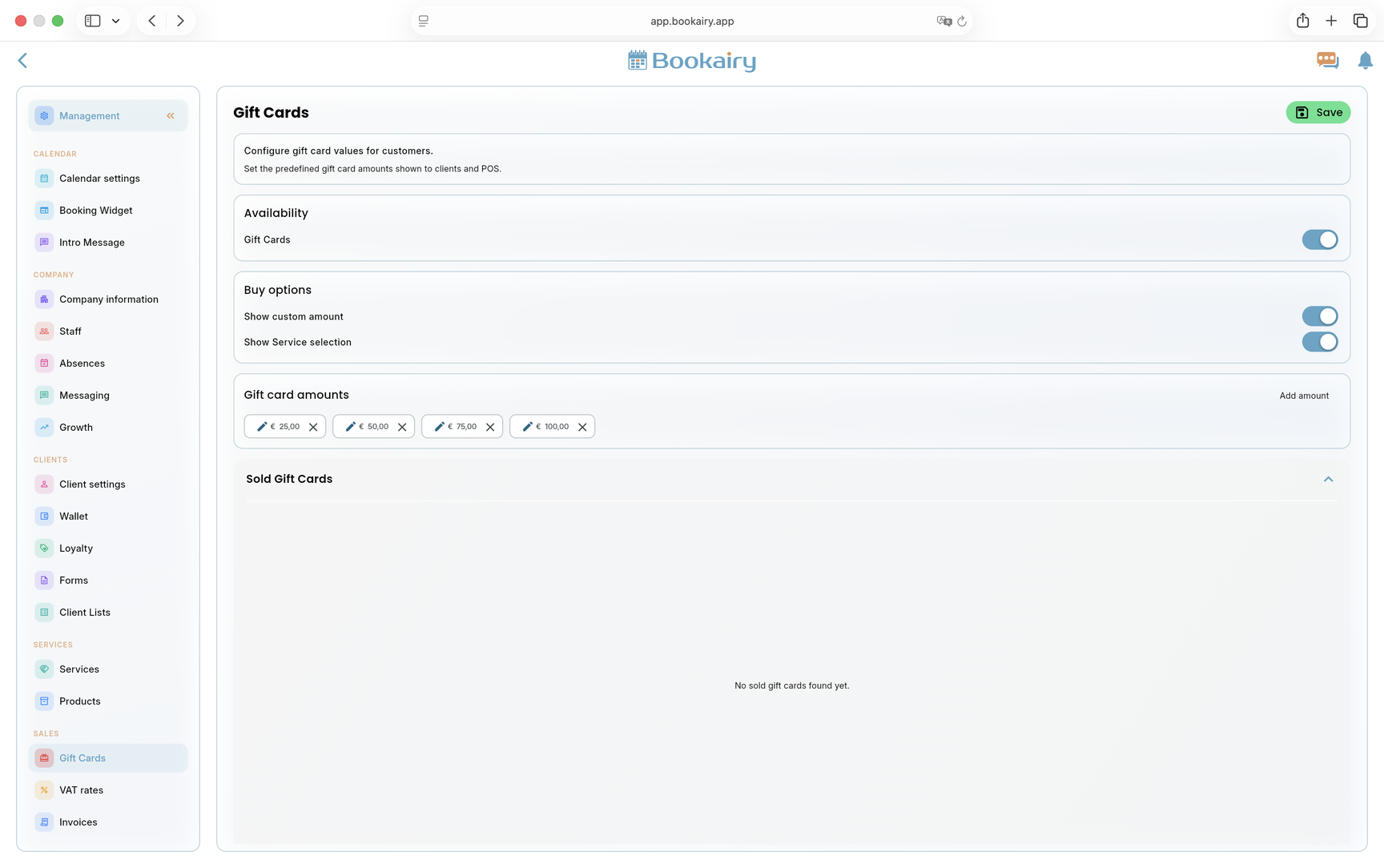
Configure gift cards
Open Gift Cards if the company sells vouchers. Gift cards can be a strong sales channel, but the rules should be set before clients buy them.
- Enable gift cards only when staff knows how to sell and redeem them.
- Choose whether clients can enter a custom amount or select a service.
- Add the preset values the company wants to offer, then save and test a sale and redemption.
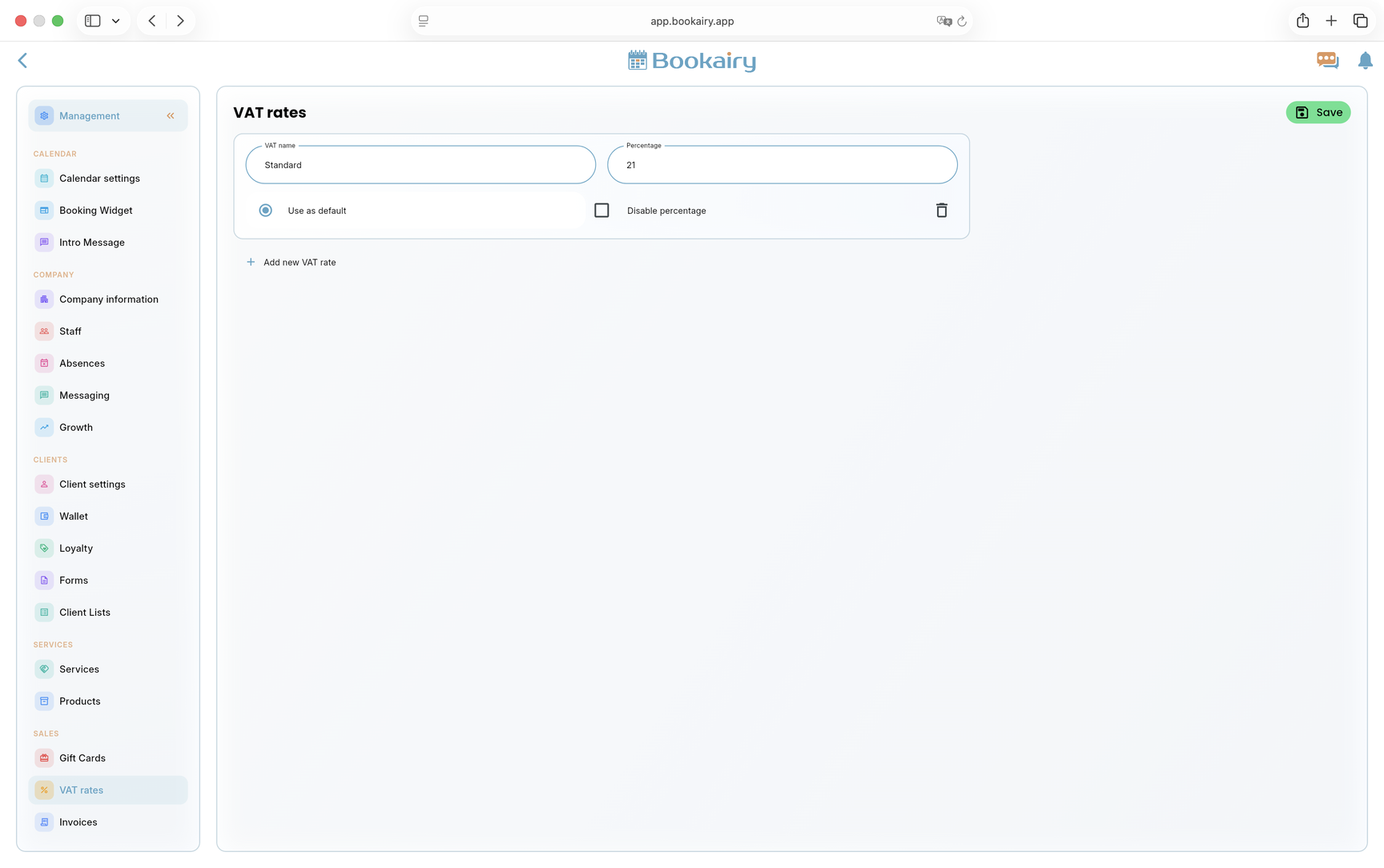
Set VAT rates
Finish the first setup in VAT rates. VAT settings affect service sales, products, POS, invoices and financial reporting.
- Add the standard VAT name and percentage, such as Standard at 21 percent.
- Mark the rate as default when it should apply to most sales.
- Add extra rates for exceptions and disable percentage only when the business case requires a non-percentage VAT setup.
Launch checklist: company details, opening hours, planning rules, staff, services, resources, booking links, notifications, payment settings, VAT rates and at least one test booking should be completed before clients receive the live link.