






Management calendar
What each setting controls
These options are mainly display preferences for the calendar workspace. They are saved per staff member and per platform, which means one staff member can have a different setup from another, and the same staff member can use different layouts across platforms.
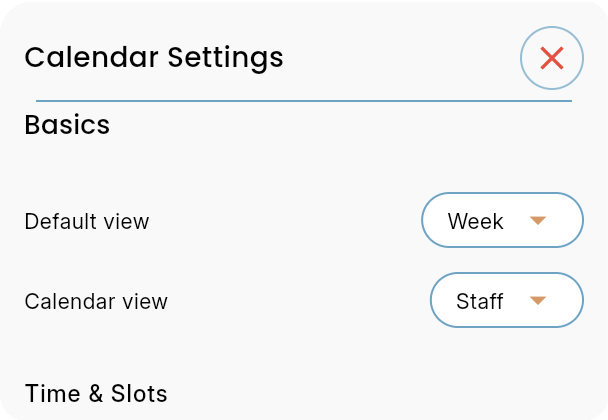
Choose the starting calendar layout
The Basics section defines which calendar view opens by default and how appointments are grouped on screen.
- Default view decides whether the calendar opens in a day, week or other supported time range. Use Week when staff wants a broader planning overview.
- Calendar view controls the grouping mode. Staff view groups appointments by staff member, which is useful when multiple employees work at the same time.
- These settings should match the workflow used most often at the front desk, so the team does not need to switch views every morning.
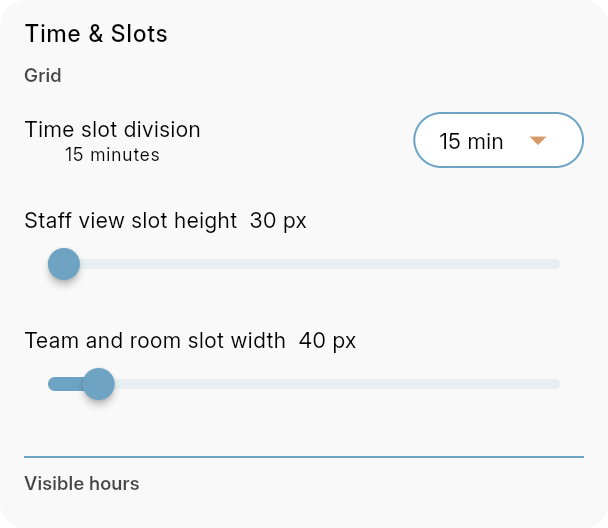
Set how dense the planning grid feels
The Time & Slots settings affect the visual grid used to read, place and drag appointments. They do not shorten a service duration by themselves; they change how the schedule is displayed.
- Time slot division sets the timeline increments, for example 15 minutes. Smaller divisions give more precision; larger divisions create a cleaner, less busy calendar.
- Staff view slot height changes the vertical height of staff rows. Increase it when appointment cards need more space for service and client details.
- Team and room slot width changes the width of team or room columns. Use a wider value when names, resources or appointment blocks feel cramped.
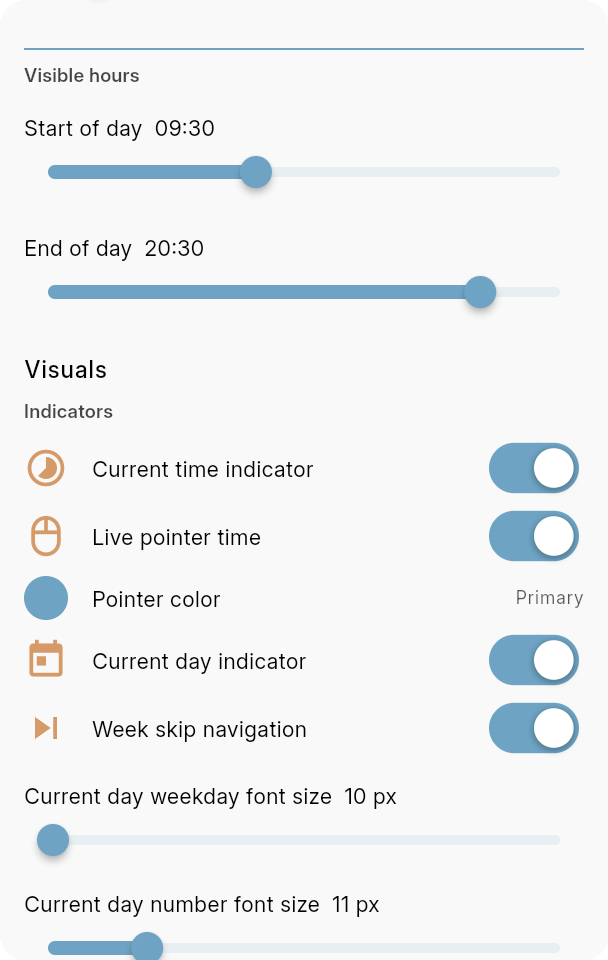
Control visible hours and calendar indicators
Visible hours keep the calendar focused on the working day, while indicators add visual markers that help staff understand the current moment and move through the week.
- Start of day and End of day define the visible time range. Set these around the business day so closed hours do not take unnecessary screen space.
- Current time indicator shows where the current time falls on the calendar, which helps staff compare upcoming and past appointments quickly.
- Live pointer time shows the exact pointer time while moving across the calendar, useful for accurate drag and drop planning.
- Pointer color chooses the color used for the live pointer. Primary keeps it aligned with the Bookairy interface.
- Current day indicator marks today in the calendar header. Week skip navigation adds faster week navigation controls.
- The current day weekday and number font size sliders tune how prominent today's label appears.
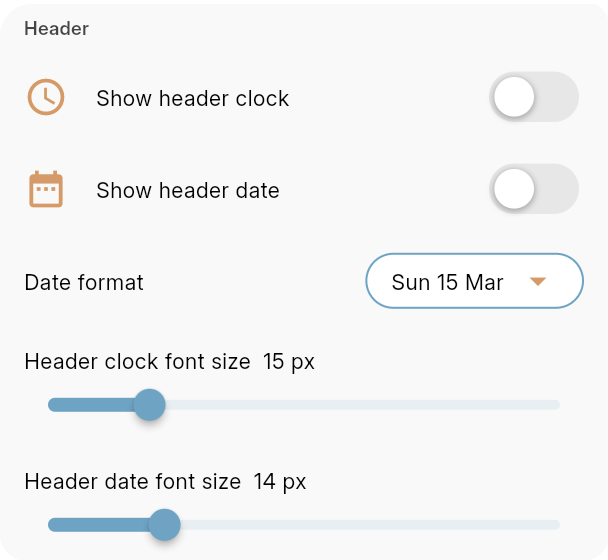
Adjust header date and clock display
The Header options decide what supporting information appears above the calendar and how readable it should be on desktop, tablet or a shared reception screen.
- Show header clock adds the current time to the calendar header. This is useful on a reception screen or shared planning display.
- Show header date adds the date to the header, and Date format chooses how that date is written.
- Header clock font size and Header date font size tune readability without changing the rest of the calendar.
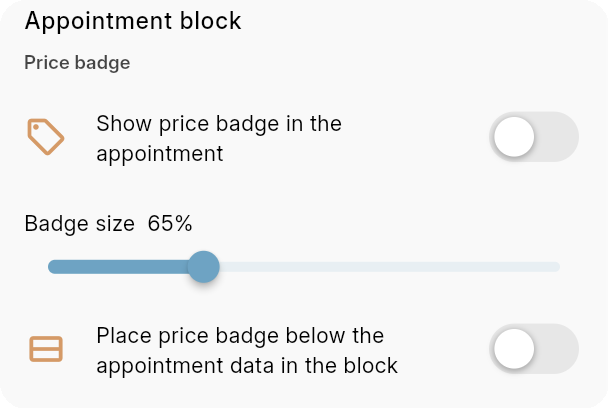
Decide where the price badge should sit
The appointment block layout controls how much room remains for service, staff and client text inside each appointment.
- Place price badge below the appointment data in the block moves the badge away from the top of the card.
- Use the lower badge position when the appointment title, service or client name needs the first line of the card.
- Use the normal badge position when payment status must be visible immediately while scanning the calendar.
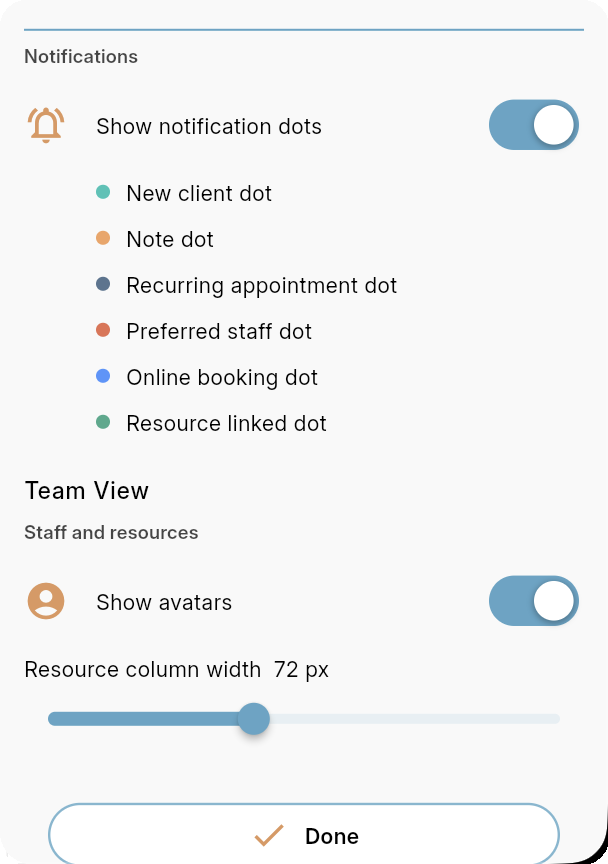
Show appointment dots, avatars and resource width
Notification dots add compact appointment signals, and Team View settings change how staff and resource columns are shown.
- Show notification dots enables colored dots on appointment blocks for quick recognition.
- New client dot marks first-time clients. Note dot marks appointments with notes that staff should read.
- Recurring appointment dot marks repeating bookings. Preferred staff dot highlights bookings tied to a preferred staff member.
- Online booking dot shows appointments created through the online booking flow. Resource linked dot shows bookings connected to a room, device or other resource.
- Show avatars displays staff avatars in team view. Resource column width controls how much horizontal space each resource column uses.
- Tap Done after changing settings so the calendar can apply the new layout.
Best practice: set the drawer for readability first. Start with the business day hours, choose the team grouping that matches daily operations, then enable only the indicators staff actually uses during live planning. Because these settings are per staff member and per platform, each team member should review the drawer on the platform they use most.